
Redeem rewards at Tevalis POS
Look up members on the till and apply promotions, points, or Cashback from myne.
Published
 Lakshey
On Tevalis, staff redeem myne rewards from the register: promotions, points spends, and Cashback. Everything appears as a reward on the open check after the customer is attached.
Points are redeemed by setting a points cost on a promotion, the same way you redeem points elsewhere in myne. Cashback uses your normal Redeem Cashback promotion. Discount and free-item offers work as standard promotions.
Before you start
Connect Tevalis and register till loyalty (iCRM). See Connect Tevalis POS to myne.
Set up the offers you want on the till under Add-ons → Promotions. See Setting up Promotions.
For each offer that should appear on Tevalis, tick Tevalis as a channel.
For points, use a promotion with a points cost, and turn on Brand Points if you use it. See Set up Brand Points in myne.
For Cashback, create your usual Redeem Cashback promotion, tick Tevalis, and make sure Cashback is on. See Reward customers with Cashback.
Find a customer on the till
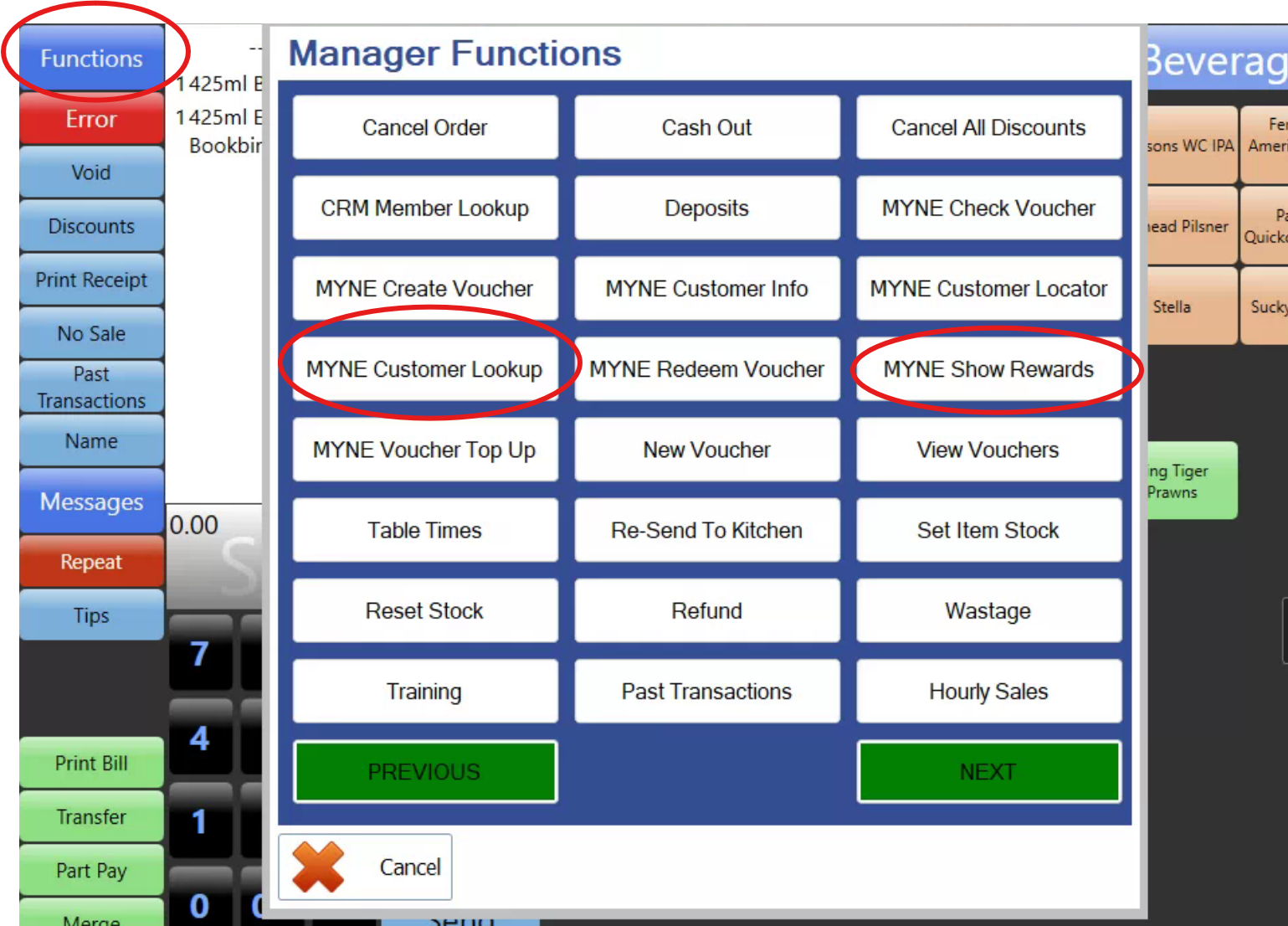
On the Tevalis main screen, select Functions (top left).
In Manager Functions, select MYNE Customer Lookup.
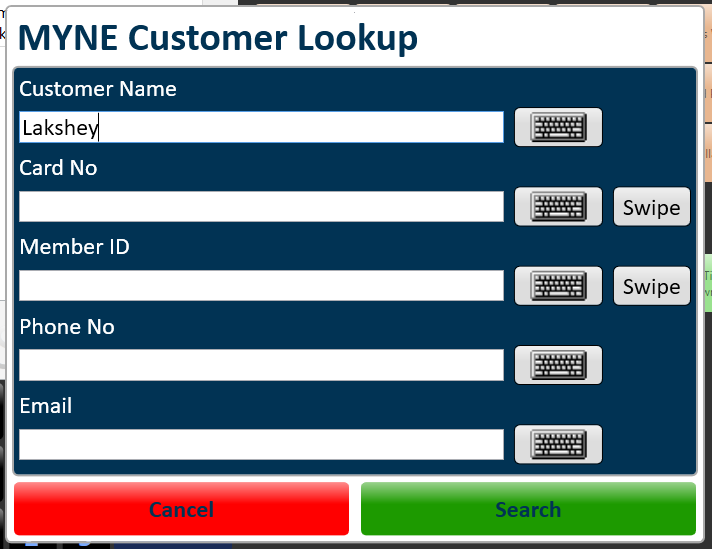
Search by name, email, or phone, then select Search.
Choose the customer. They are added to the order.
You can also select MYNE Show Rewards first. If no customer is on the order yet, Tevalis opens customer lookup, then shows rewards once the customer is attached.
Apply a reward
Open MYNE Show Rewards from Manager Functions (or continue after lookup if rewards already opened).
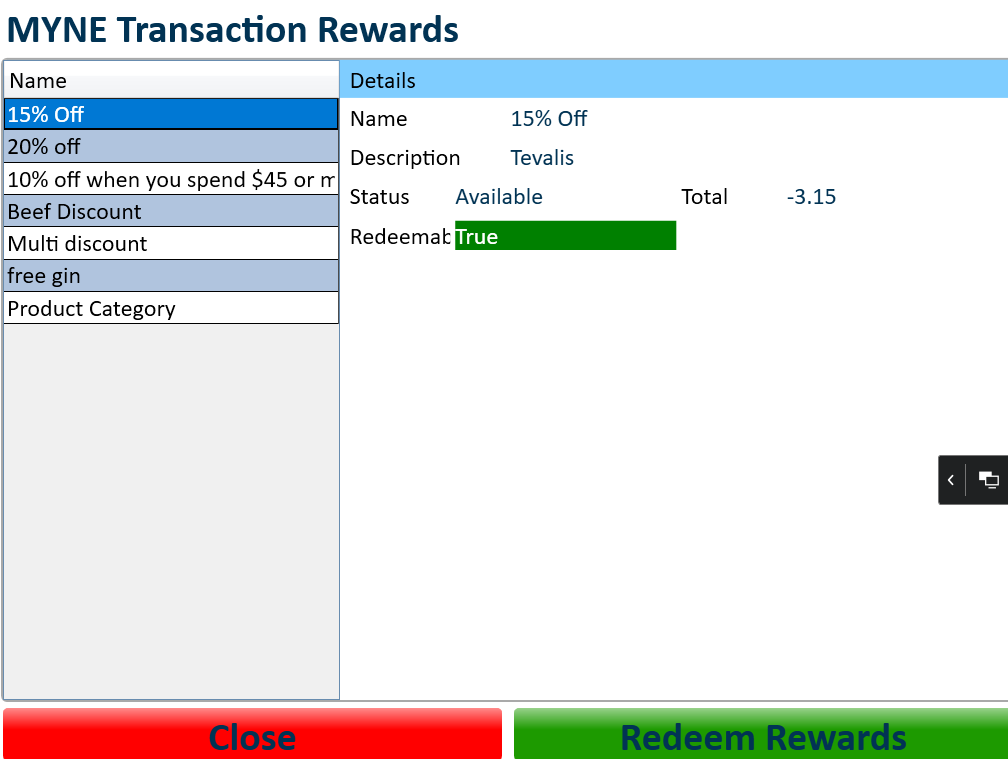
On MYNE Transaction Rewards, select a reward from the list.
Check the details panel. Redeemable shows True when the offer can apply to this check, or False when it cannot (for example the basket does not meet the rules, or the customer does not have enough points or Cashback).
Select Redeem Rewards.
The reward is added to the order as a line (for example 15% Off with the dollar amount taken off). Finish the sale as usual. When the sale closes, myne records the redemption on the customer.
Check points balance
With a customer on the order, open Functions → Manager Functions → MYNE Customer Info.
MYNE Customer Details shows their profile, including Points Balance. Use this when staff need to confirm balance before redeeming a points promotion.
If a reward will not apply
Redeemable: False — the offer is listed but cannot apply to this check. Check basket rules, minimum spend, product or category match, stacking, and whether the customer has enough points or Cashback.
No rewards listed — confirm the customer is on the order, promotions are live with Tevalis ticked, and iCRM webhooks are registered.
Customer not found — try another search field (name, email, or phone), or check the customer exists in myne.
Related: Connect Tevalis POS to myne · Setting up Promotions · Reward customers with Cashback · Set up Brand Points in myne