
Connect Tevalis POS to myne
Link Tevalis so sites, menu, and sales sync into myne, then register the till for loyalty.
Published
 Lakshey
Connect Tevalis POS to myne so your venues, menu, and closed sales sit on the same customer profiles you use for groups, campaigns, and loyalty.
After you connect, register till loyalty (iCRM) and run an initial sync from the same page. That lets the register look up members in myne and show promotions, points, and Cashback at the till.
Before you start
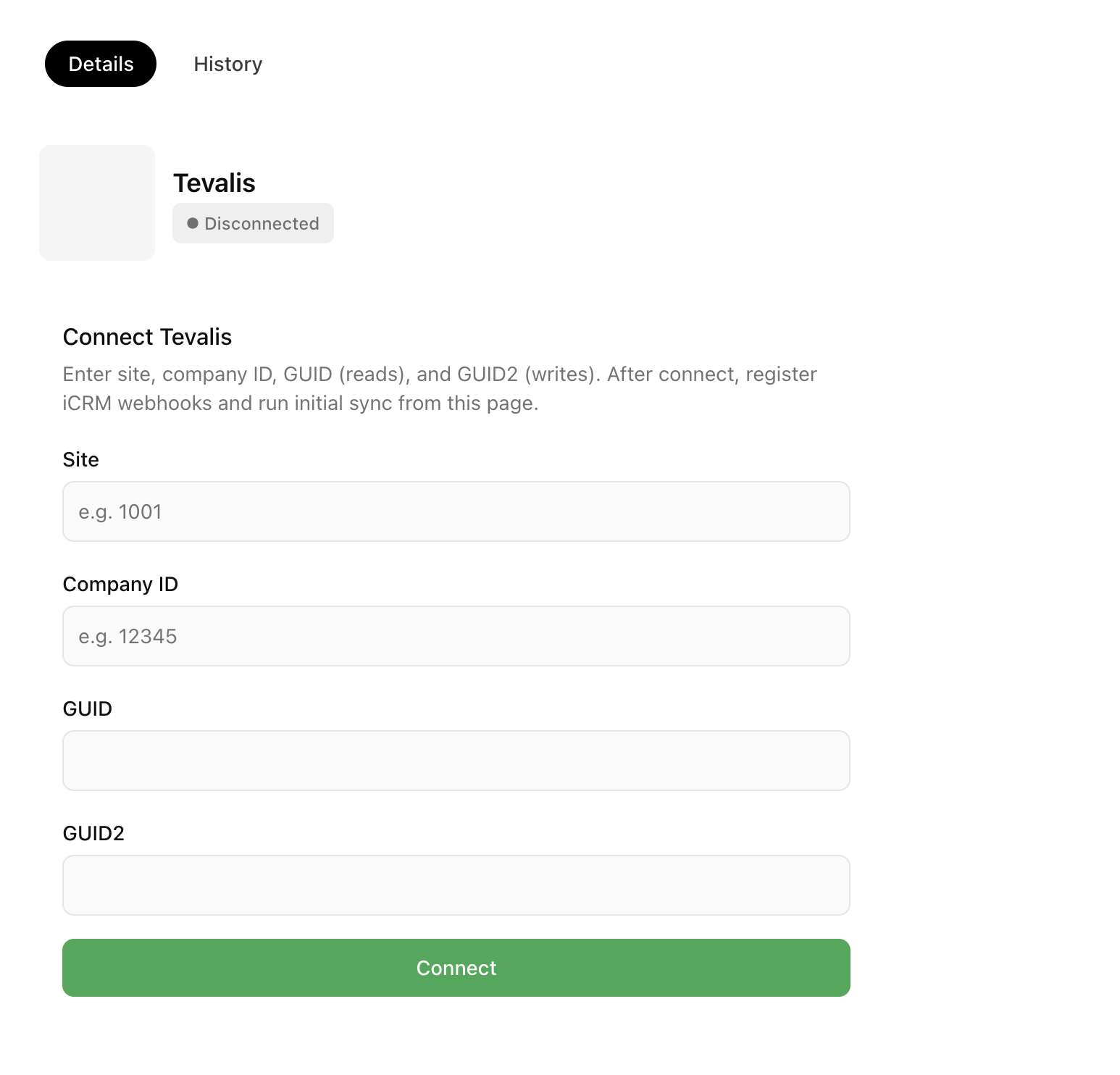
Ask Tevalis (or your integrator) for the values myne needs: Site, Company ID, GUID (reads), and GUID2 (writes). These are not your Tevalis platform password.
You need access to myne as a brand user who can open Settings → Integrations.
Connect Tevalis
Go to Settings → Integrations → Tevalis.
Under Connect Tevalis, enter Site, Company ID, GUID, and GUID2.
Select Connect.
When the connection succeeds, status shows as Connected. You will see your company ID, site, and the list of Tevalis sites myne found.
Register till loyalty (iCRM)
Till member lookup and rewards need Tevalis pointed at myne.
On the Tevalis page, find Till loyalty (iCRM).
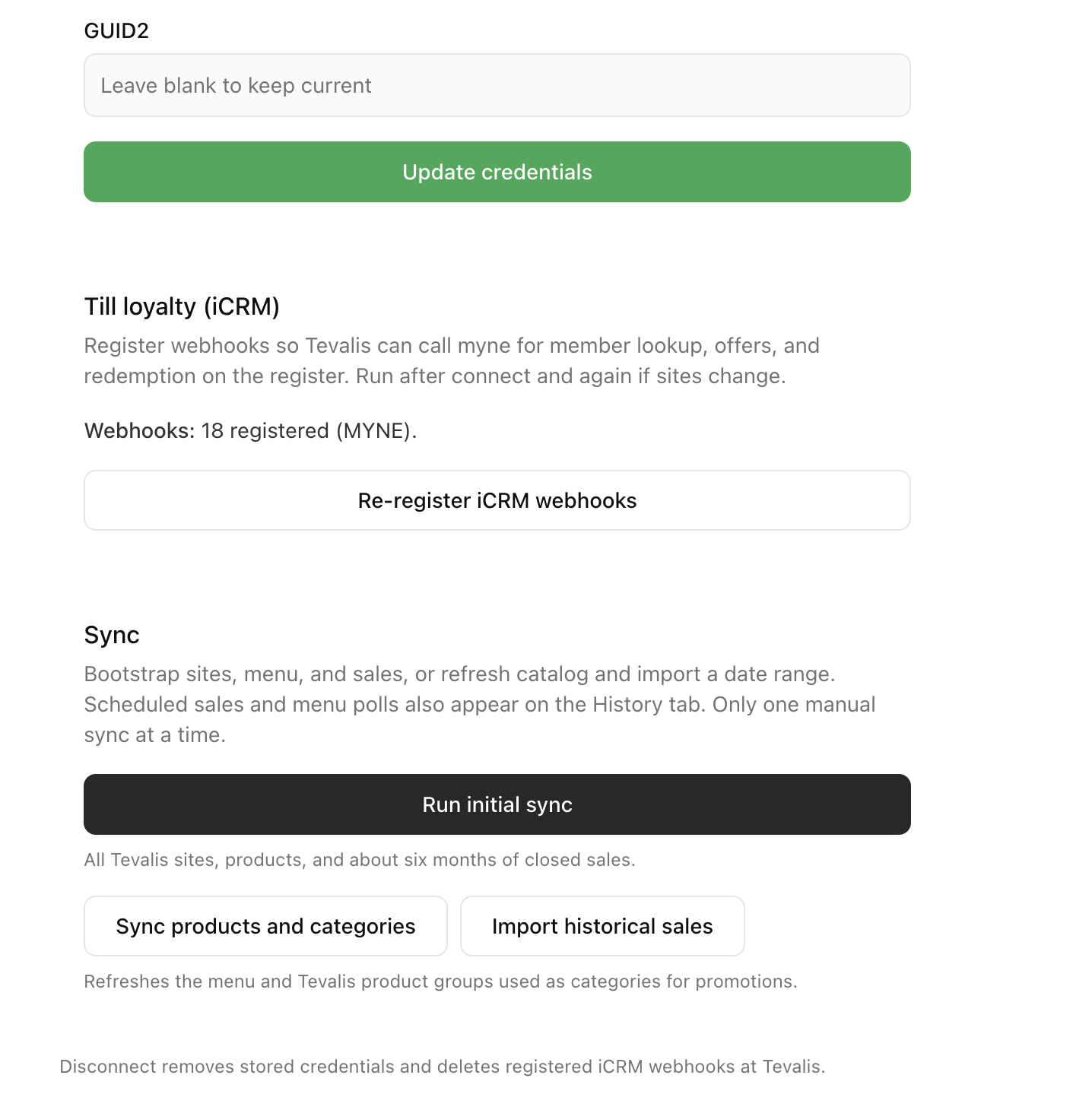
Select Register iCRM webhooks (or Re-register iCRM webhooks if you have connected before).
When it succeeds, myne shows how many webhooks are registered (for example Webhooks: 18 registered (MYNE)).
Run this after you first connect, and again if your Tevalis sites change.
Initial sync
Select Run initial sync. myne bootstraps all Tevalis sites, products, and about six months of closed sales.
Progress appears on the History tab. Only one manual sync can run at a time.
After the first sync, you can also:
Sync products and categories — refreshes the menu and Tevalis product groups used as categories for promotions.
Import historical sales — pulls closed sales for a date range you choose.
Scheduled sales and menu updates also appear on History.
What data is synced
Once connected, myne syncs:
Sites (venues)
Products and categories
Closed sales
Customers are matched from member activity on those sales and from till lookup. New Tevalis activity then keeps updating.
Update credentials or disconnect
To rotate keys without disconnecting, use Update credentials. Enter only the fields you want to change. Leave GUID or GUID2 blank to keep the current values, then select Update credentials.
To remove the connection, select Disconnect and confirm. That removes stored credentials and deletes registered iCRM webhooks at Tevalis. You can connect again later from the same page.
Related: Redeem rewards at Tevalis POS · Setting up Promotions · Reward customers with Cashback