Use myne in Lightspeed K-Series POS
Find a customer on the till and apply myne promotions from the POS button
Published
 Lakshey
Once the myne web extension is on your Lightspeed K-Series menu, staff use it on an open order to find a customer and apply myne promotions at the till.
This guide covers the till workflow. To connect Lightspeed K-Series, create the web extension, and add the myne button, see Integrate with Lightspeed K-Series POS.
Before you start
Lightspeed K-Series is connected and Active in myne.
The myne web extension is set up for this venue, and the myne button is on the POS screen.
A Promotion product is mapped for this venue in myne.
The offers you want on the till have Lightspeed K-Series turned on under Where it shows.
Open myne on an order
On the Lightspeed K-Series till, start or open an order.
Add the items the customer is buying (or open the check if items are already on it).
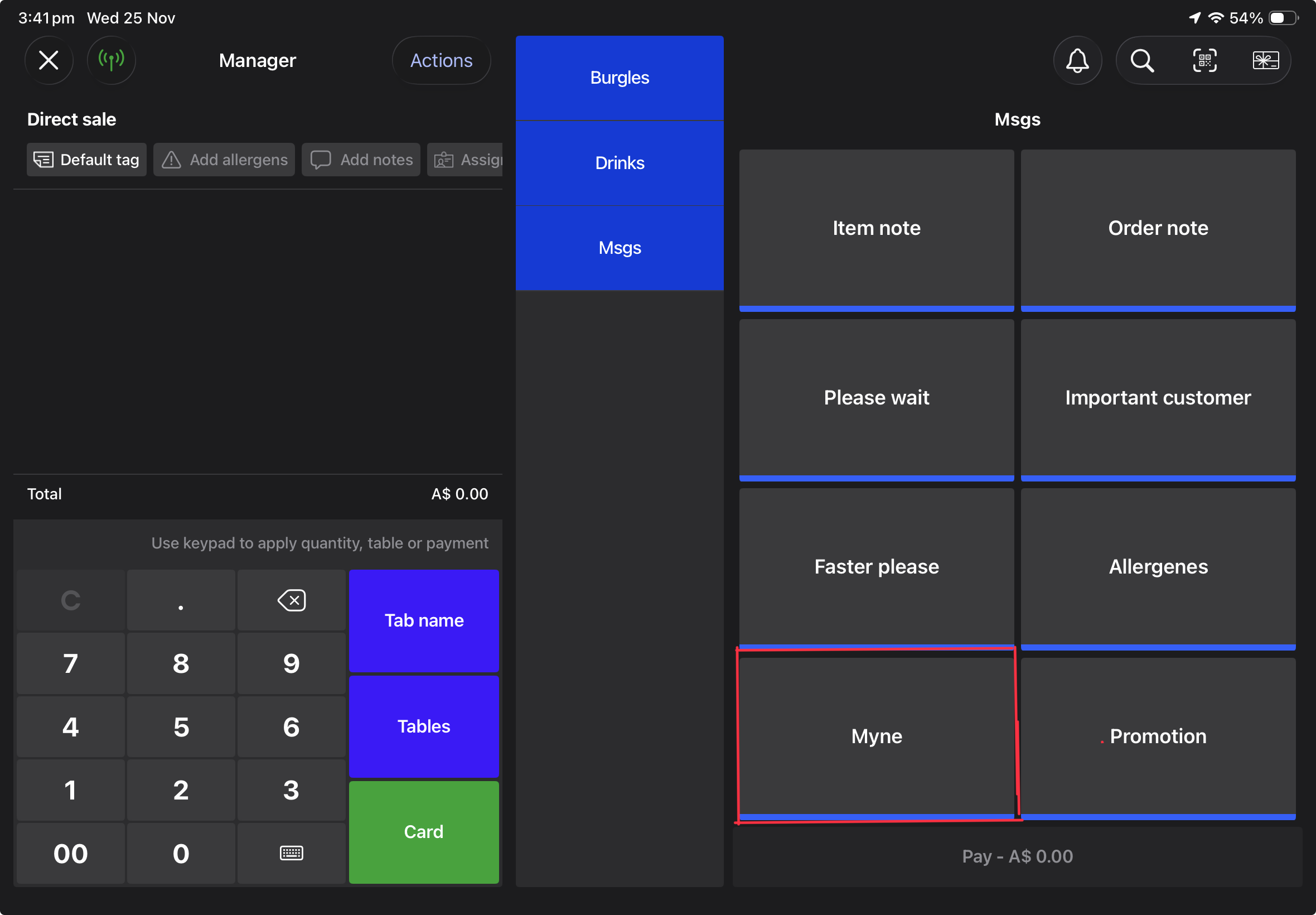
Tap the myne button on the POS menu.
myne opens as a panel over the order. Keep the order open while you use the embed — promotions are calculated against the items on that check.
Find and link the customer
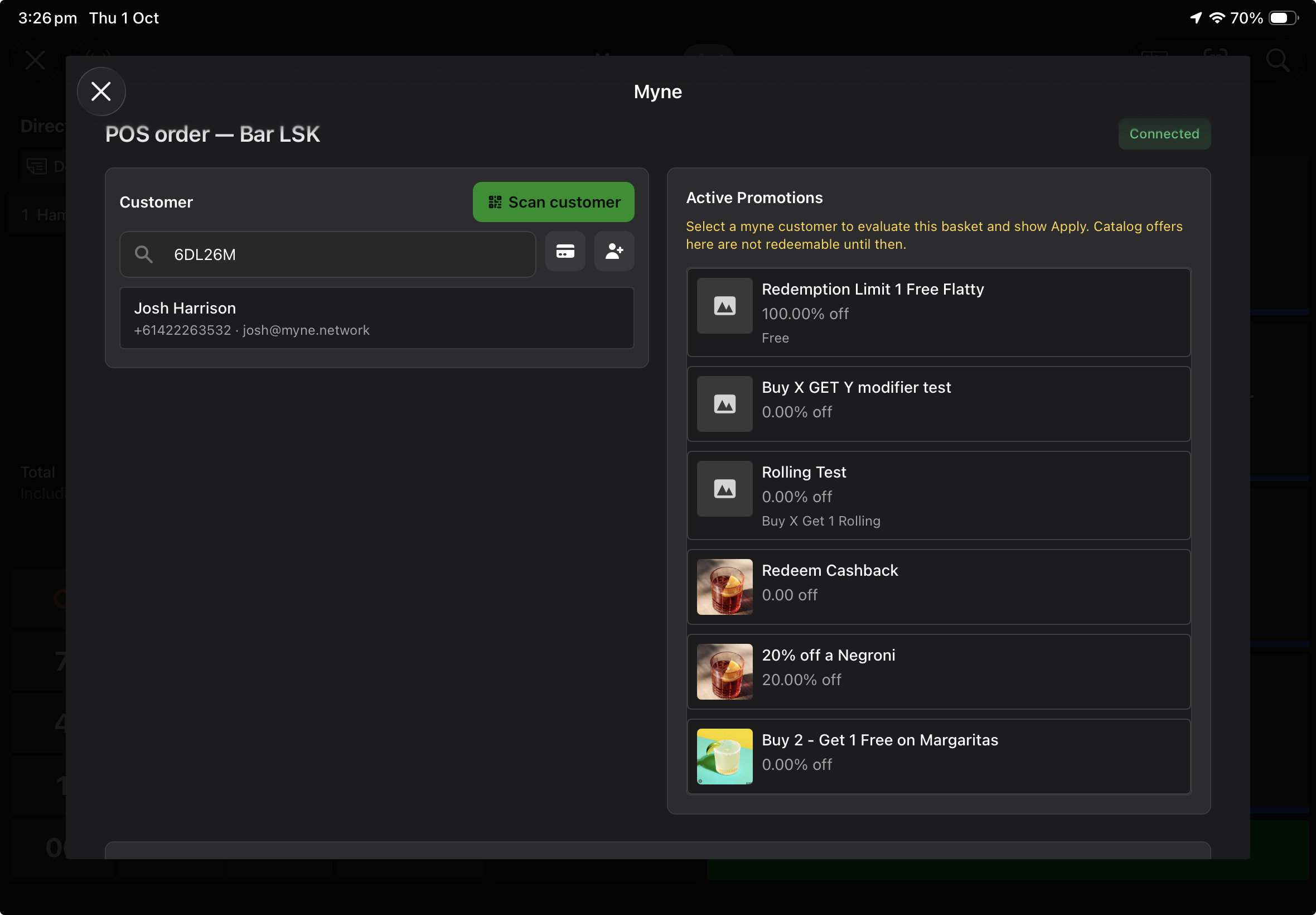
Link a myne customer to the order so the right offers and balances show.
Search by name, email, or phone.
Scan a customer QR or personal code when they have a wallet pass or connection code.
If the guest is already attached in Lightspeed with matching contact details, myne may match them when the embed opens. Confirm it is the right person before you apply an offer.
When a customer is linked, the embed shows their name and contact details. You may also see points, store credit (cashback), and customer groups.
If the wrong person is linked, unlink them and search again before applying a promotion.
Review available promotions
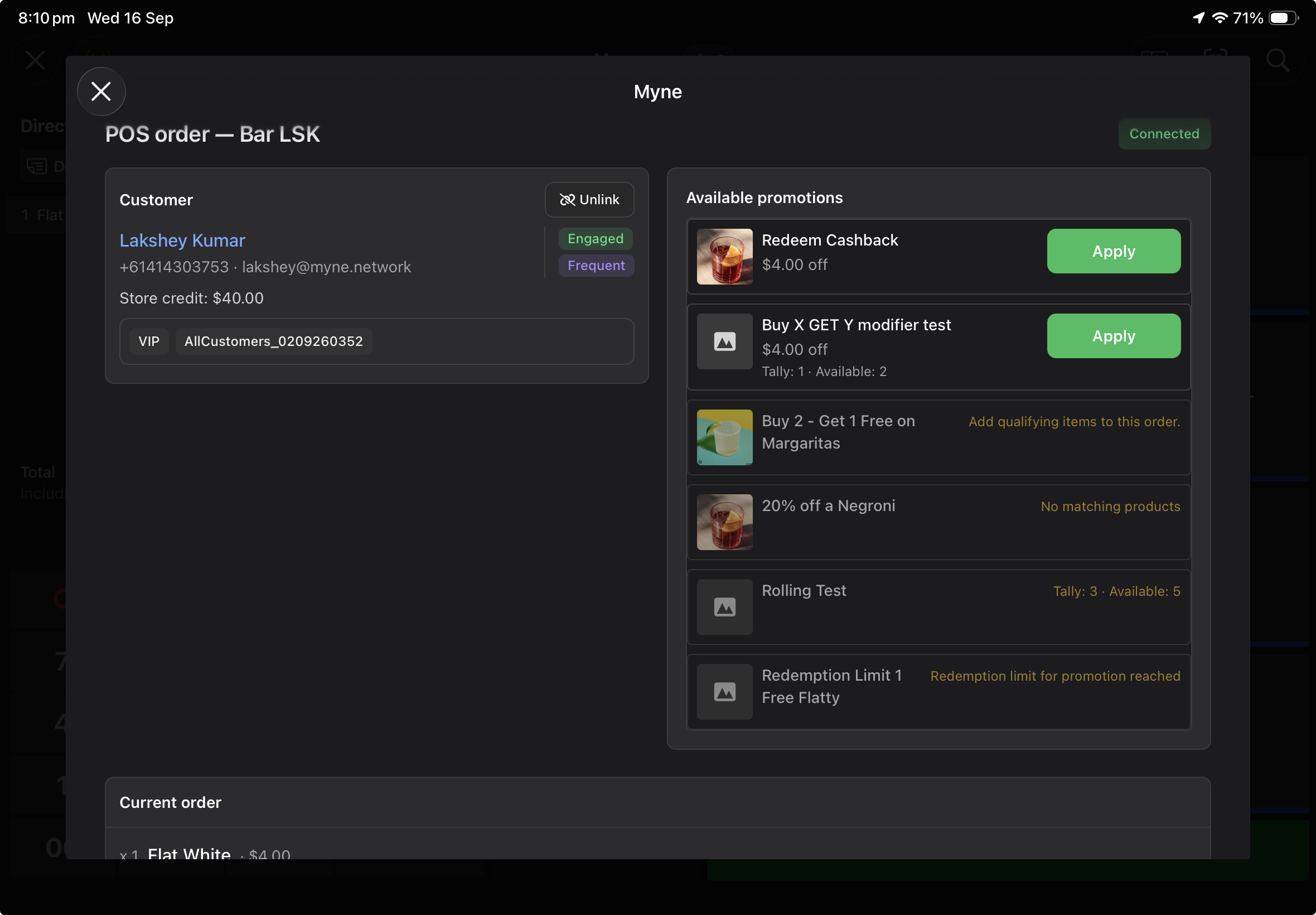
With a customer linked, myne lists promotions that apply to this order and this person.
Offers that can be used now show an Apply action.
Some offers apply themselves when they are set to auto-apply and the order qualifies.
Locked or ineligible offers may still appear so staff can explain what is missing (for example membership, group, or cart rules).
For rolling Buy X Get Y offers, the embed can show stamp tally toward the next free item and how many are available to redeem.
Apply a promotion
Confirm the correct customer is linked.
Tap Apply on the offer you want to use.
Wait for the discount line to appear on the Lightspeed check (using the mapped promotion product).
Finish the sale in Lightspeed as usual.
If Apply is not available, check that items are on the order, the customer qualifies, and the promotion has Lightspeed K-Series turned on. If the discount never lands on the check, confirm the venue’s promotion product allows custom pricing (including a negative price).
Open the customer profile
From the embed, you can open the customer’s full myne profile when you need more detail. Use the back path to return to the POS order view when you are done.
Tips for busy service
Add items first, then open myne — rewards are based on the current basket.
Link the customer before applying offers so the right audience rules apply.
One venue, one embed URL — if the wrong venue’s button is on the till, offers and the promotion product may not match.
Related
Integrate with Lightspeed K-Series POS — connect, web extension, and menu button
Setting up Promotions — turn on Lightspeed K-Series under Where it shows
Choose who can see and use a promotion — audience and locked offers