
Set up card-linked loyalty with Tyro
Turn on Link payment card on Connection pages and promotions so customers can link a card after they join
Published · Updated
 Lakshey
Card-linked loyalty lets customers earn loyalty automatically when they pay with a card linked to their myne profile. Once linked, customers can simply tap or use the same payment card at your Tyro venue and myne can recognise the payment against their profile — without them needing to scan a QR code or identify themselves again each visit.
There are two ways customers can link their card with Tyro:
On-terminal loyalty lets customers join after making a payment at your Tyro terminal. Because Tyro already knows which card was used for the transaction, the customer only needs to provide their details to join and their card is linked automatically.
Card linking through myne lets customers enter their card details after joining through a Connection Page or promotion. This is useful when you are capturing the customer before they make a transaction, or through an online experience.
Both methods connect the customer's payment card to their myne profile so future payments can be recognised and used for card-linked loyalty.
Set up Tyro on-terminal loyalty
Tyro on-terminal loyalty gives customers the opportunity to join after completing a payment at your venue.
The sign-up experience is configured through your Tyro Connect portal. To get started, contact myne support at support@myne.network and we will provide the sign-up form required to set up on-terminal loyalty with Tyro.
Once enabled, customers can be prompted to join after payment. When they complete the sign-up flow, the card used for that transaction is linked to their new or existing myne profile.
Future payments made with the same card can then be recognised automatically.
Set up card linking through myne
You can also ask customers to link a payment card after they join or check in through a myne Connection Page or promotion.
This works well when you want to capture the customer before they pay, such as through an in-venue QR code, a promotion, or an online connection experience.
Before you start
Make sure:
Read our guide on how to Connect Tyro to ensure your terminal syncs to myne.
You have a Connection Page or promotion where customers share their details before continuing.
How card linking works
When card linking is enabled, customers first complete the normal connection or check-in flow. They are then shown a Link payment card prompt and can securely enter their card details through Tyro.
Once their card is linked, future payments made with that card at your mapped Tyro venues can be matched to the same myne profile. This allows myne to recognise their visits and spend automatically and, where loyalty is configured, award loyalty from the payment.
Customers who already have a Tyro card linked for your brand are not asked to link it again.
Enable card linking on a Connection Page
Use this when customers join or check in through a hosted Connection Page, such as your default Connect page or a Dynamic Connection Page.
Go to Settings → Connection Flows → Connection Pages.
Open the Connection Page you want to use, or create a new one.
Turn on Require Customer Connection if it is not already enabled.
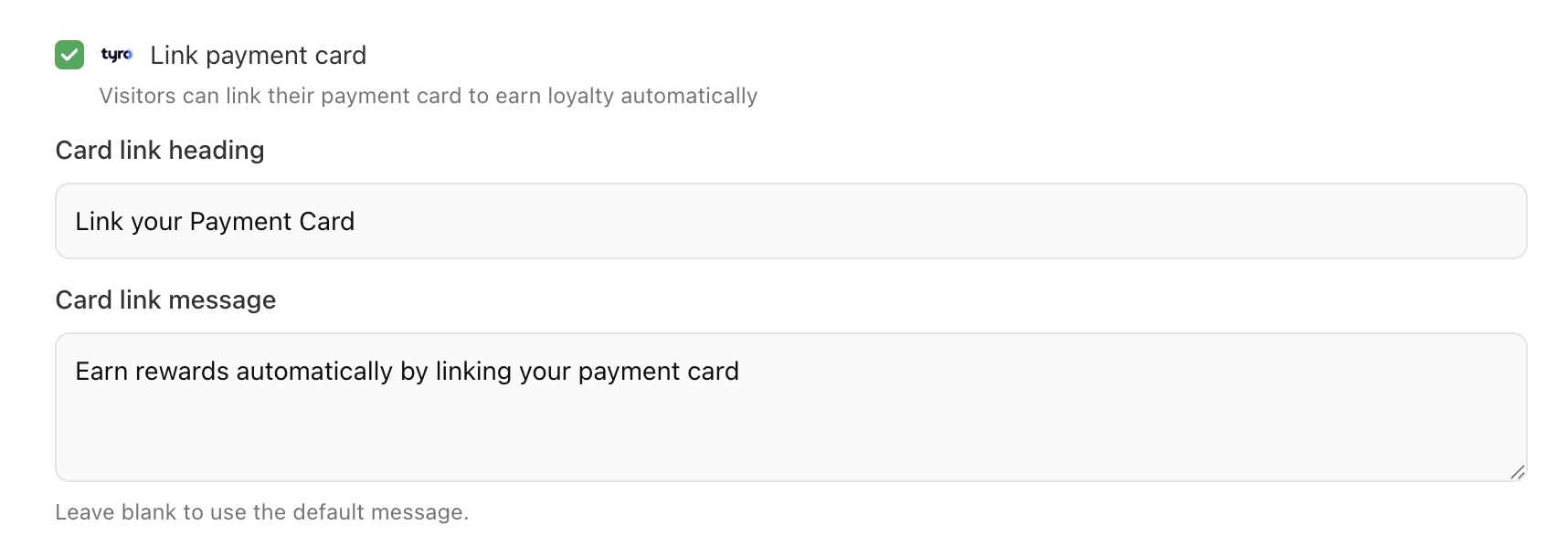
Under Link payment card, leave card linking enabled.
Optionally add a Card link heading and Card link message. Leave these blank to use the default wording.
Save the page.
Enable card linking on a promotion
You can also control card linking for an individual promotion. This is useful when customers need to identify themselves before claiming a particular offer.
Go to Promotions and open the promotion you want to edit, or create a new one.
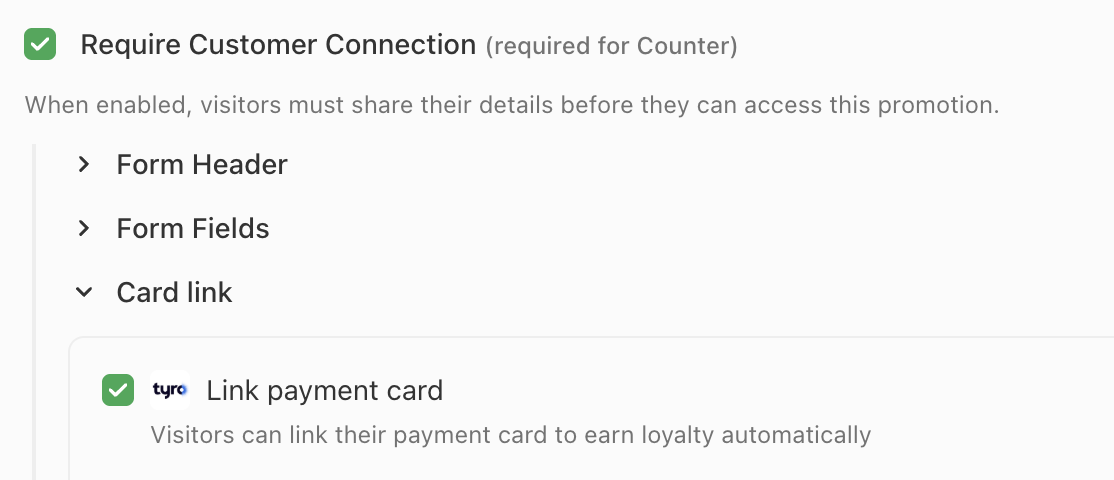
Turn on Require Customer Connection.
Expand Card link.
Enable Link payment card.
Optionally add a Card link heading and Card link message.
Save the promotion.
Settings on the promotion take priority over the Connection Page defaults when a customer claims that promotion.
What the customer experiences
For Connection Pages and promotions:
The customer opens your Connection Page or promotion and shares their details.
After connecting, they see the card-link prompt if they do not already have a linked Tyro card.
They select Link Card and enter their card details through the secure Tyro form.
Future payments with that card at your mapped Tyro venues can be recognised against their myne profile.

Customers can select Skip for now if they do not want to link a card. They will not be asked again during the same browser session.
With on-terminal loyalty, the flow happens after payment instead. The customer joins from the Tyro experience and the card they just used can be linked as part of that sign-up.
Important things to know
Connecting Tyro by itself does not automatically link a customer's card to their profile. The customer still needs to link their card through either Tyro on-terminal loyalty or a myne Connection Page or promotion.
For Connection Pages and promotions, card linking is only offered when Tyro is connected, Link payment card is enabled, and the customer does not already have a linked Tyro card.
Card linking is enabled by default where available when Tyro is connected, but you can turn it off for individual Connection Pages or promotions.
Related guides
Connect Tyro — connect Tyro and map your venue merchant IDs.
Dynamic Connection Pages — create personalised Connection Pages for different customer experiences.
Setting up Promotions — create and configure promotions.