
Link customer cards in-store with Lightspeed or Square
For Lightspeed and Square: customers join on a QR, staff add them to the sale, and the card links when they pay
Published · Updated
 Lakshey
Placing QR codes throughout your venue is the fastest way to start recognising customers on Lightspeed or Square. Turn unknown customers into known customers. If you use Lightspeed O-Series, also read Setting Up Your Check-in Flow for Lightspeed O-series.
When someone scans your in-store QR code, they are taken to your branded Connection page and shown an offer that encourages them to share their details. Once completed:
A customer profile is created in myne
If using Lightspeed O-Series, the customer is checked in to your POS
If using Square, myne syncs customers to Square so you can search for them and add them to the sale
Staff add the customer to the sale
Their payment card is linked to their profile once they pay
From that point on, any future visit paid with the same card is recognised automatically. This is myne's card link loyalty.
Learn how to create a QR Code which you can give to your designer to build your own in-store QR codes.
How it works
1. Customer scans your QR code using their mobile device.

2. They are taken to your branded sign-up page.

3. The customer enters their name, email, and accepts Terms & Conditions.

4. The customer will appear on the POS ready to be linked and remembered for all future orders. Find them using your POS customer search.
Lightspeed O series

Square POS - Hit Add customer and the checked in customer appears at the top of the list.
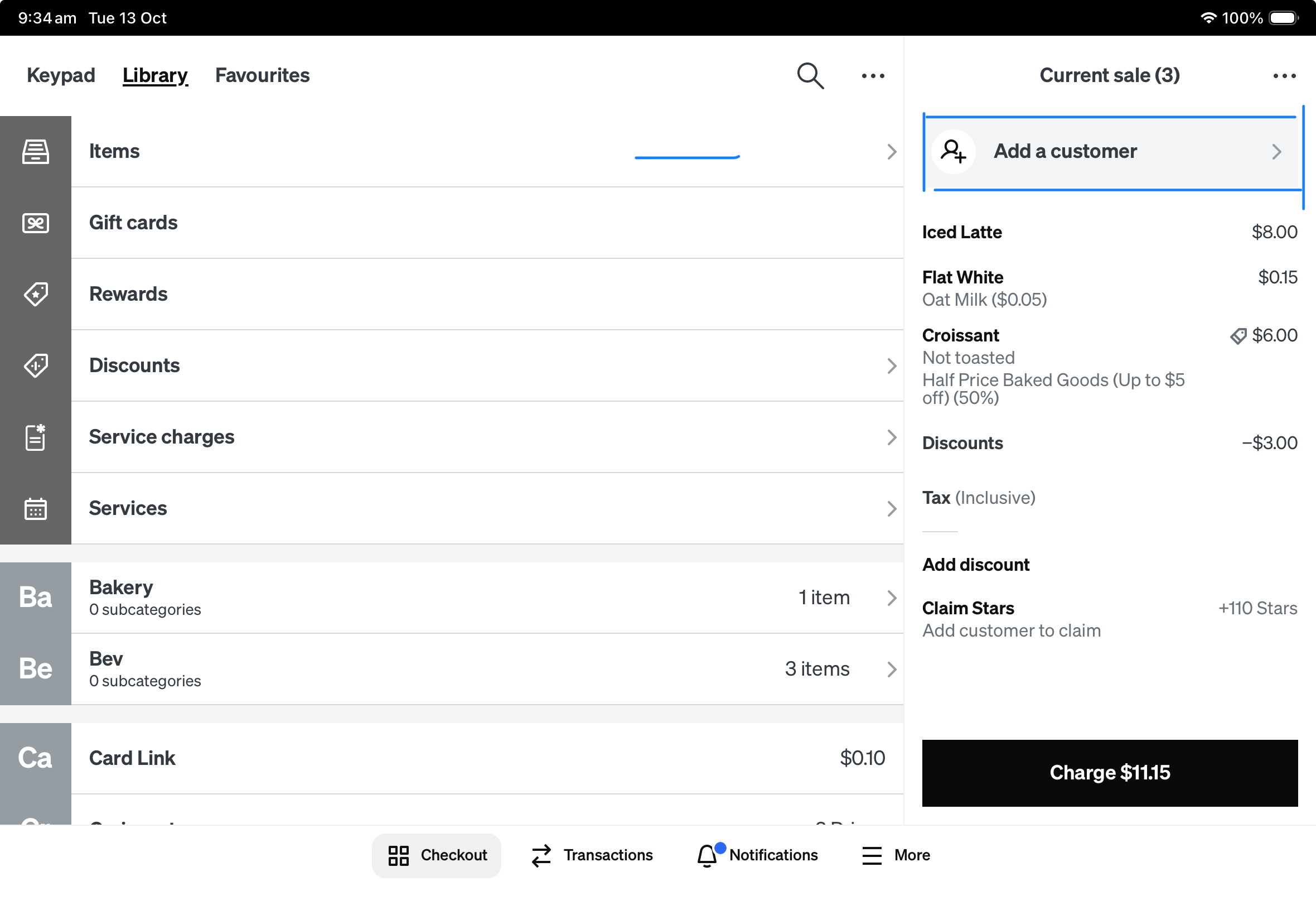
Result: You now have a connected customer (contact details plus a linked card) in myne, so you can track spend, visit frequency, and retention.
What customers see
The experience is simple and fast:
Branded landing page
Your logo, colours, and hero image create a consistent brand experience.
Quick sign-up form
Name, email, phone, acceptance of Terms & Conditions, and optional marketing opt-in.
Confirmation screen
Confirms successful check-in so the customer can show staff when ordering.
The entire process takes seconds, and gives you long-term customer visibility.
Best practice: QR placement in-store
QR visibility directly impacts adoption.
Place your QR code:
At eye level near the POS
On tables or table tents
On menus
Near entrances
On digital screens (if available)
Multiple touchpoints increase scan rates. Customers will not always notice a single placement.
You can also link Dynamic Connection Pages to QR codes and use them throughout your venue. Consider a Dynamic Connection Page if you use QR codes in your ordering experience.
Related guides
Set up card-linked loyalty with Tyro — Tyro on-terminal loyalty and linking a card after join.
Setting Up Your Check-in Flow for Lightspeed O-series — add a checked-in customer to a Lightspeed sale.
Using Bump-it with myne — link a card after a Lightspeed sale from a bump screen or docket QR.