
Custom properties
Extra fields on customers, businesses, forms, and CSV files
Published
 Josh
Josh
Custom properties are extra fields your brand defines — dietary notes, a membership type, a deal value, and so on. They can apply to customers, businesses, staff users, and journeys. They are also the fields you add onto connection forms.
Open Settings → Brand → Properties. If you do not see Properties, ask your myne contact — this is often set up during implementation.
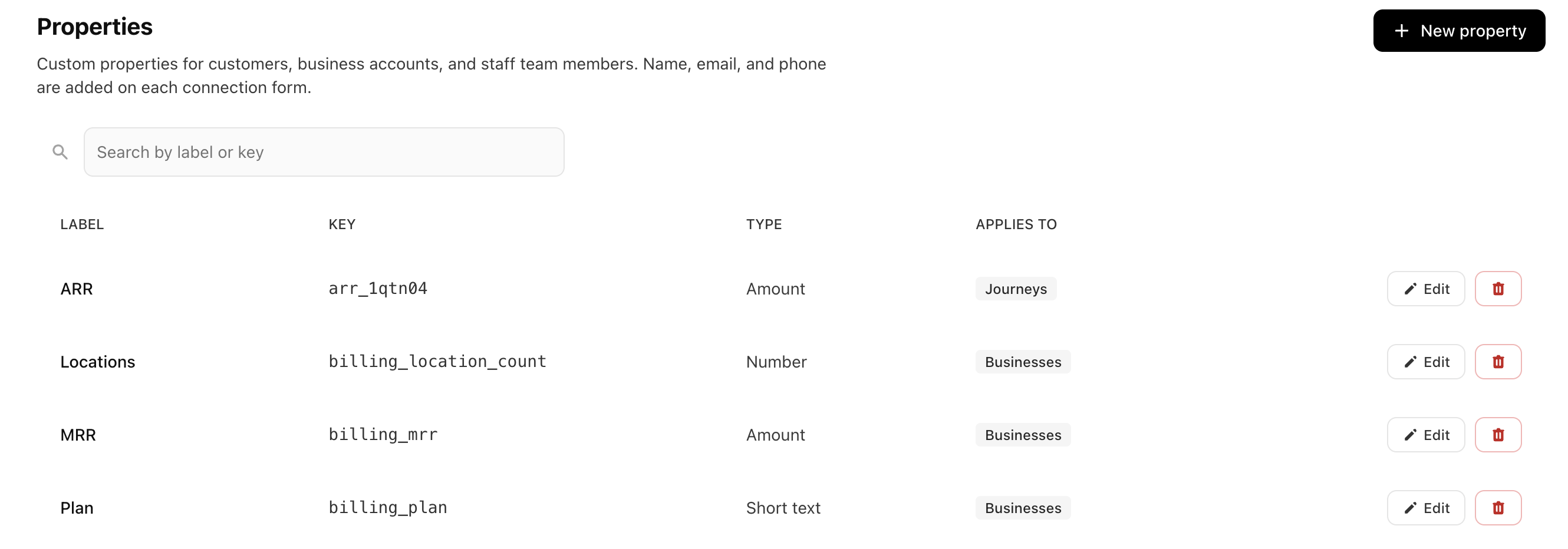
Create a property
Select New property.
Enter a Label (what people see on the profile and in a CSV).
Choose Applies to. Tick Customers and/or Businesses depending on where the field belongs. You can also apply a property to staff users or journeys.
Choose a Type.
Select Create.
The property appears in the list. Edit it later with Save changes, or remove it if you no longer need it.
Choose the right type
Short text and Long text — typed answers.
Yes / No — a simple yes or no.
Date — a calendar date.
Amount — money, shown as currency.
Number — a plain figure such as a count or score, not money.
Single choice and Multiple choice — pick from a list you define (for example Topics).
Link — a web address.
Use Amount when the value is money. Use Number when it is not.
Where values appear
Once a property exists, you can set it on a customer or business profile, add it to a connection form so people fill it in themselves, or use it on a journey. See Create connection forms.
Customer-scoped properties show on the customer. Business-scoped properties show on the business account. A property can apply to both if you tick both.
Import and export
When you export customers or businesses to CSV, myne adds one column per custom property. The header is the property Label. Choice lists export as the labels people see in the app, not internal codes.
When you import a customer group CSV, columns that match those labels update the profile. Blank cells leave the existing answer. Rows that cannot apply wait on Customer imports instead of blocking the file.
When you import a business group CSV, custom properties are not written onto the business. Extra columns are kept with that import. You can still export business custom properties, and you can edit them on the business profile.
For column formats, leftover rows, and how to round-trip a file, see Import advanced customer fields with CSV.