
How to Create a Campaign
Send targeted messages to customers via email or SMS
Published · Updated
 Lakshey
Campaigns let you send targeted email and SMS messages to your customers.
Whether you're announcing a promotion, welcoming new customers, sharing an update, or encouraging customers to return, campaigns help you deliver the right message to the right audience.
Unlike Automations, which send messages based on customer behaviour, campaigns are created and managed manually.
How campaigns work
Every campaign has three parts:
Audience – Who should receive the message.
Message – What you want to send.
Timing – When it should be delivered.
Once your campaign has been sent or scheduled, you can return to the Campaigns page to monitor its status and performance.
Before you begin
Before creating a campaign, you'll need:
A Customer Group or audience to send to.
For SMS you will need to assign yourself an SMS number.
An email template (optional) if you're sending branded emails.
If you regularly send branded emails, consider creating templates in your Brand settings before building your campaign.
Create your campaign
From Conversations, open the Campaigns tab and select New Campaign.
Choose your audience
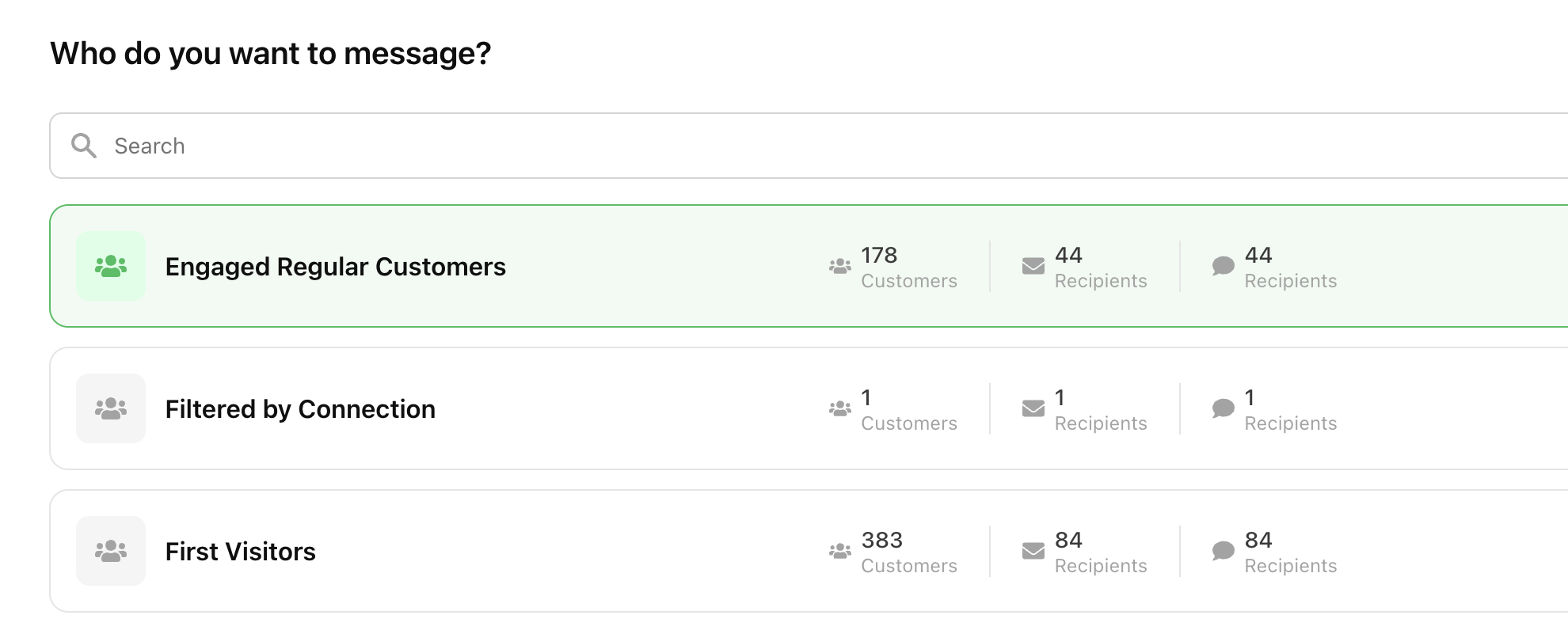
Select the Customer Group you want to message.
You can use an existing group or create a new one before continuing. The recipient count helps confirm how many customers are eligible to receive the campaign.
Create your message
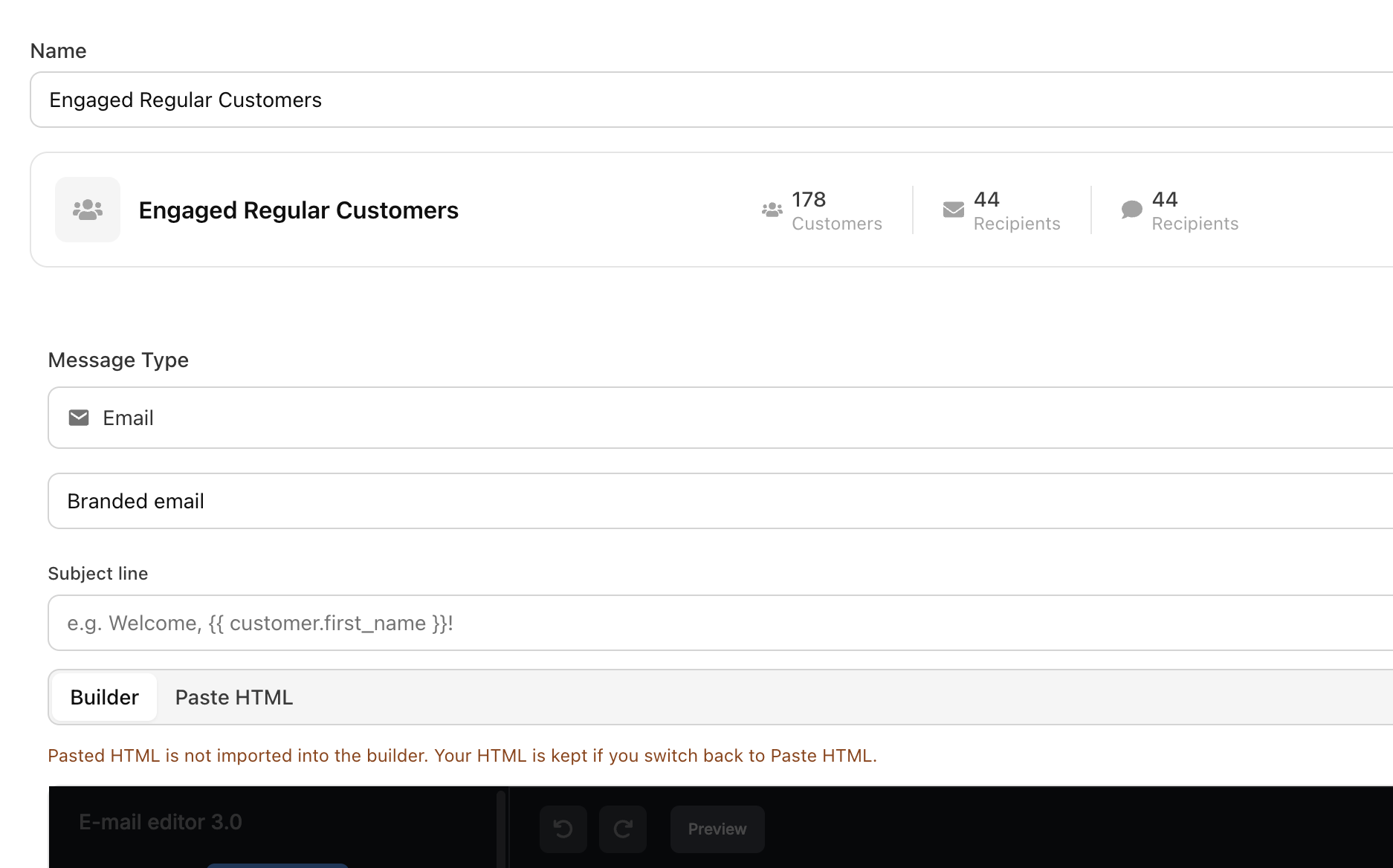
Choose how you'd like to build your message.
You can:
Write a standard email or SMS.
Use myneAI to personalise content for each customer.
Select a branded email template for a consistent look and feel.
When writing your message, you can personalise it using customer details such as their first name, helping create a more engaging experience.
Choose when to send
Once your message is ready, decide when it should be delivered.
You can:
Send immediately.
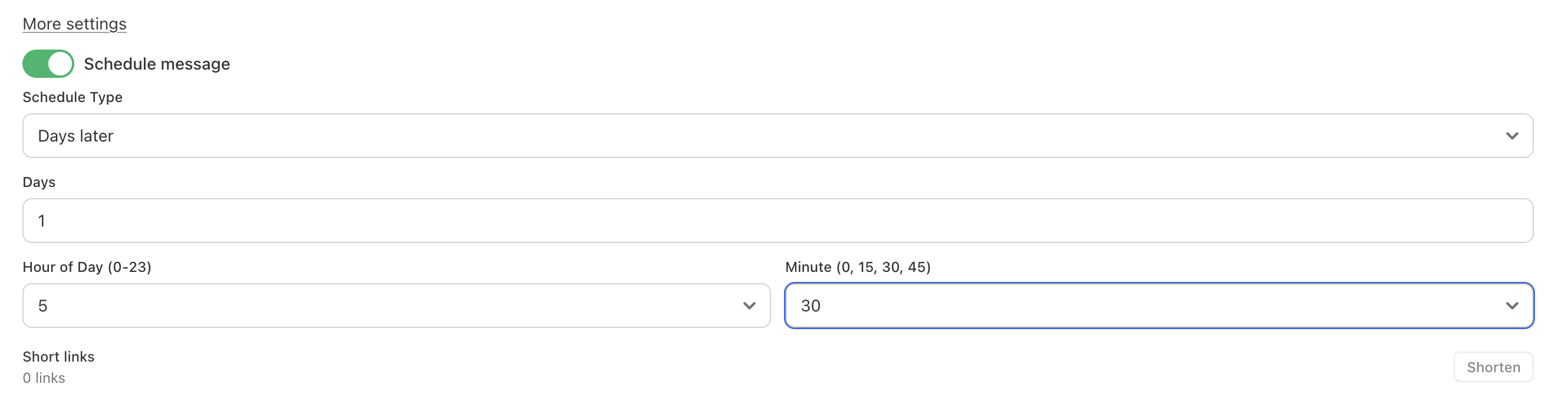
Schedule the campaign for a future date and time. Schedule message can be found in more settings under your email/SMS builder
Create a recurring campaign for regular communications.
Review your audience and message before confirming the campaign.
Managing your campaigns
After a campaign has been created, it appears in your Campaigns list.
From here you can:
View draft, scheduled, and sent campaigns.
Monitor delivery and engagement.
Duplicate previous campaigns to save time.
Review past communications.
Once a campaign has been sent, it can't be edited. If you need to make changes, duplicate the campaign, update the copy, and send it again.
Best practices
To get the best results from your campaigns:
Send messages to targeted Customer Groups rather than your entire customer base.
Personalise messages wherever possible.
Test your content before sending.
Avoid contacting customers too frequently.
Schedule campaigns for times when your customers are most likely to engage.
What's next?
Campaigns are ideal for one-off communications. If you'd like messages to send automatically based on customer behaviour, learn more about Automations, where you can build journeys that run continuously without manual intervention.