
Create and manage tasks
Add a task, assign your team, update progress, and archive when done
Published
 Lakshey
Create a task when someone on your team needs to follow up with a business or contact. You can assign it to a team member, set a due date, keep updates and files with the task, and move it through different statuses as the work progresses.
Before you start
If Tasks does not appear in the sidebar, see What are tasks? to learn how to turn Tasking on.
Create a task
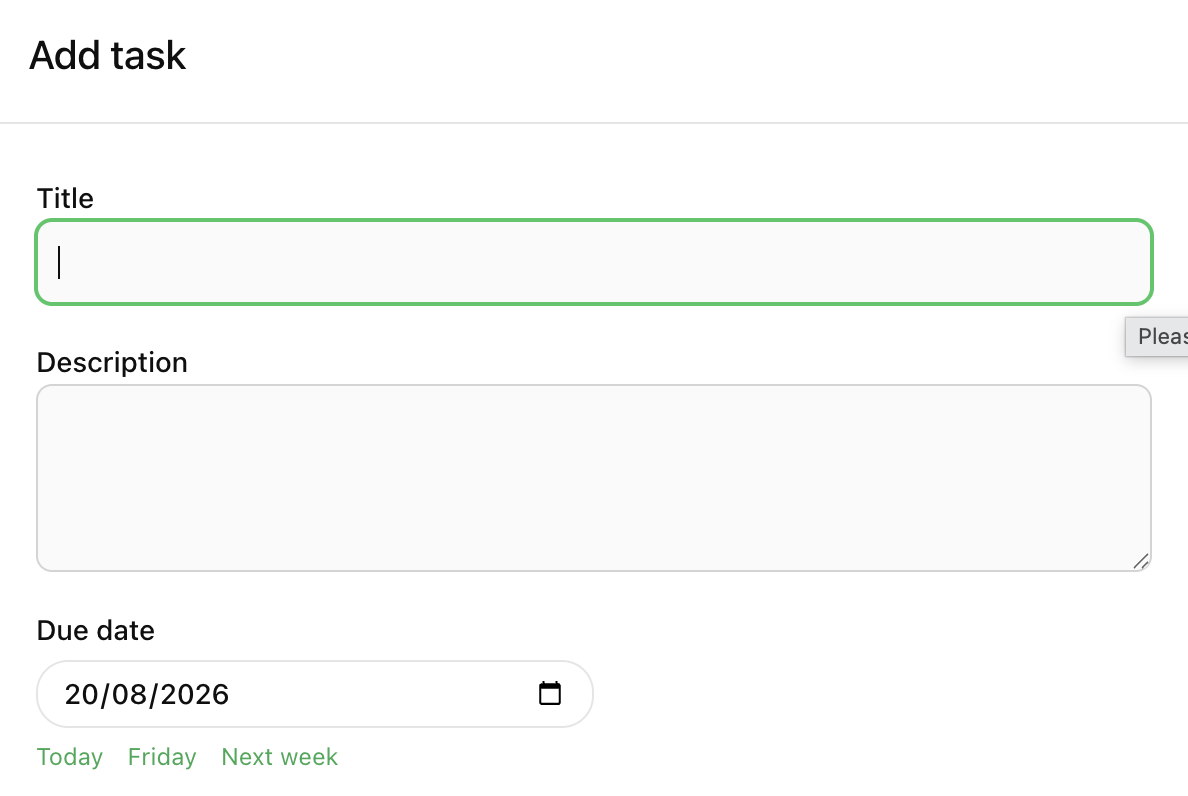
Open Tasks and select Add task. You can also create a task from a business or contact.
Enter a Title.
Add a Description, Due date, assignees, or linked businesses and contacts if needed.
Select Create task.
New tasks start as To do and are due tomorrow by default. You can change or remove the due date before or after creating the task
Update a task
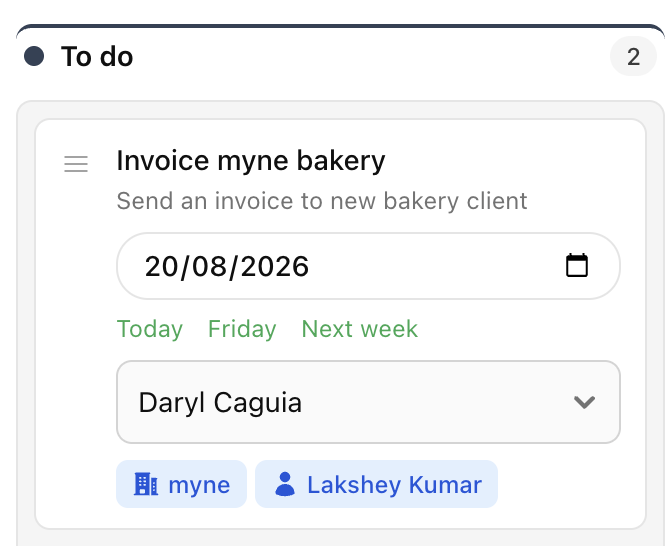
Open a task to change its title, description, status, due date, assignees, or linked records. Changes save as you go.
You can also make common updates without opening the task:
In List view, change the status, due date, or assignee.
In Board view, drag a task into another status column.
Use My tasks to see tasks assigned to you, or Unassigned to find tasks without an owner.
Tasks that remain To do or In progress after their due date are marked overdue. Complete and Parked tasks are not treated as overdue.
Add comments and files
Open a task and select Add comment to leave an update. Type @ to mention a teammate, then select Post comment.
You can also attach files directly to the task or include them with a comment.
Archive a task
Tasks cannot be deleted. When you no longer need a task in your lists, open it and select Archive, then confirm Archive this task? The archive button is located on the top right hand side of the open task.
Archived tasks are removed from Tasks and cannot be restored from there.
Tasks can also be created automatically when something happens in myne. See What is an Automation to learn how to add a Create a Task action to an automation.