
What are tasks?
Follow-up work for your team on businesses and contacts
Published
 Lakshey
Tasks are follow-ups your team owes on a business or contact. Use them when someone needs to call a buyer, send a quote, book a tasting, or chase an invoice — work that belongs to the account, with an owner and a due date. Use tasks with our Business accounts feature to enhance your management of business relationships.
Journeys show where an account sits in a process. Tasks are the specific pieces of work people need to do next. You might log a meeting on a business, then create a task so someone sends the proposal by Friday.
Turn on Tasking
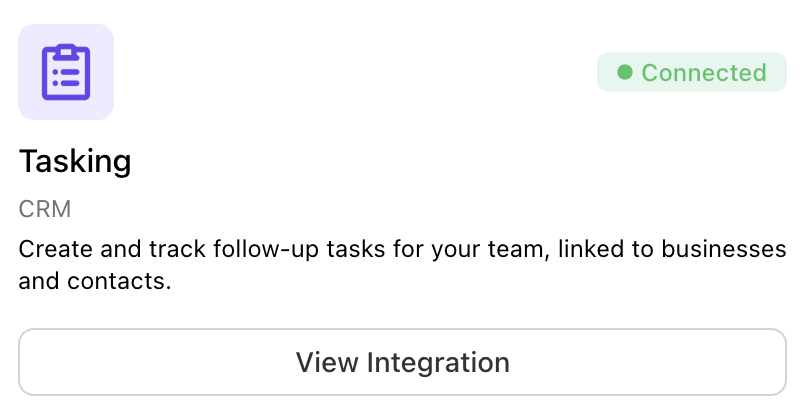
Go to Settings → Integrations → Tasking and turn on Enable Tasking. Tasks then appears in the sidebar.
Tasks are best used with our Business Accounts features. As such we automatically enable tasks when you turn on Business Accounts.
Where tasks live
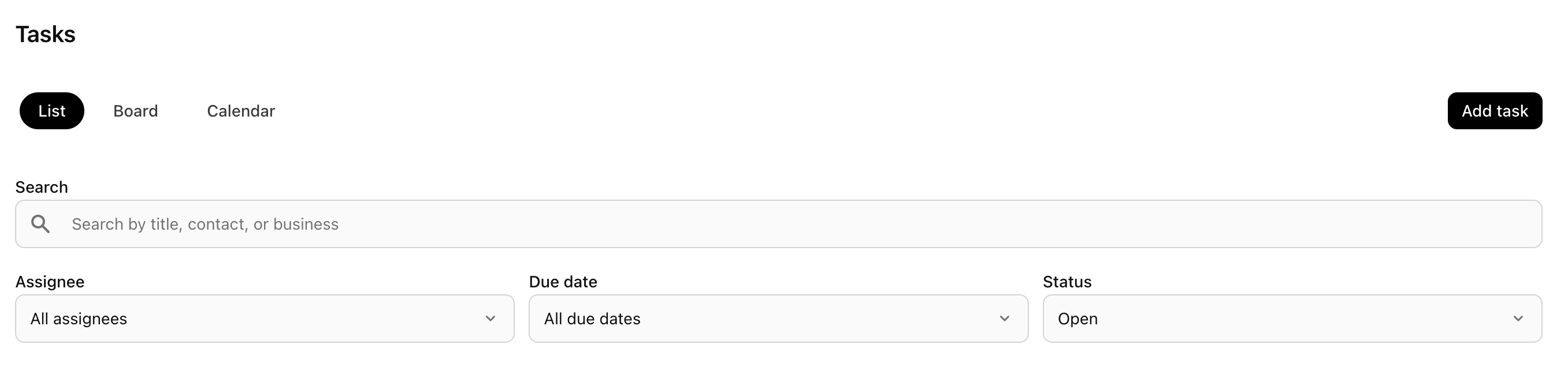
Open Tasks to work in List or Board view. You can also add and see tasks from a business or contact.
New tasks start as To do. Move them to In progress while someone is working on them, Complete when they are done, or Parked if they are on hold. List and Board default to open work — completed and parked tasks stay hidden until you include them in Status.
A task can link to businesses and contacts, so the follow-up stays with the account it belongs to.
The Calendar tab shows Google Calendar meetings, not your tasks. Due dates still appear in List and Board.
To add, assign, and archive tasks, see Create and manage tasks.