
Connect Shopify
Connect shopify with myne to sync customers, orders & run promotions
Published · Updated
 Lakshey
Shopify connects your online store to myne so ecommerce customers and paid orders sit alongside your other customer activity. That helps you recognise regulars across channels and use online purchases in groups, campaigns, and automations.
This guide explains how to connect Shopify, what to choose after you connect, and what keeps updating.
Before you start
You need Edit access on Integrations for your brand.
Have your Shopify store domain ready (for example
your-store.myshopify.com).You will sign in to Shopify and approve access when prompted.
Connect Shopify
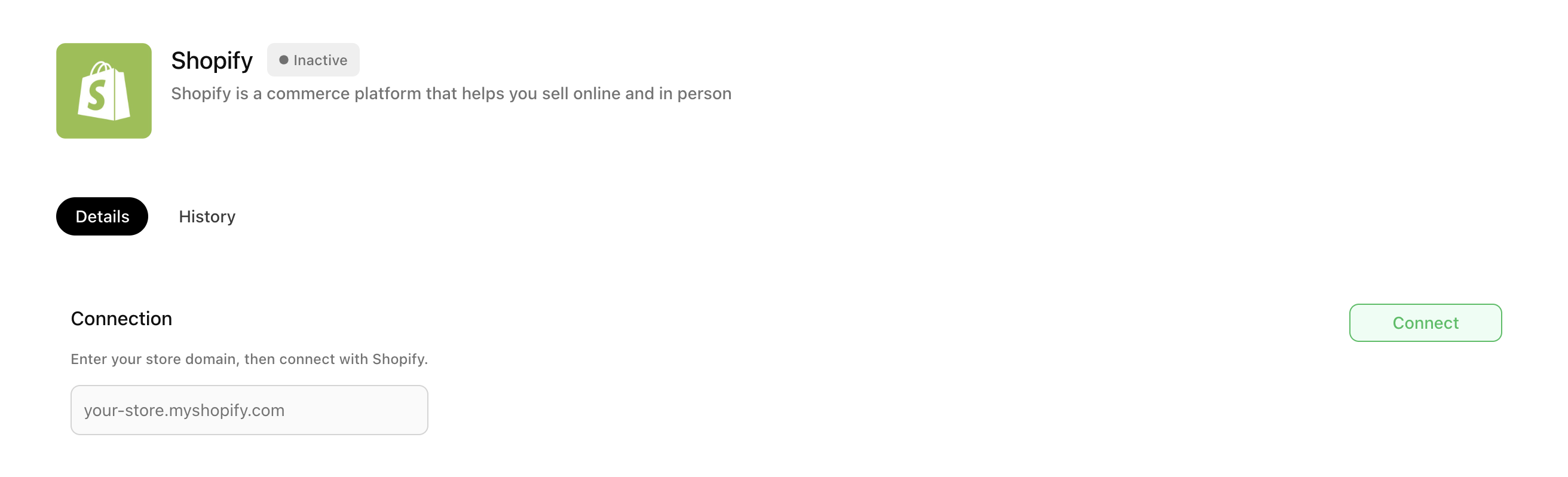
Go to Settings → Integrations → Shopify.
Enter your store domain in the format
your-store.myshopify.com.Select Connect.
Complete the Shopify authorisation screen for your store.
When the connection succeeds, status shows as Active.
If you installed myne from the Shopify App Store and landed in myne with your shop already filled in, Connect may start automatically after a short countdown. Select Cancel if you need to change the domain first.
Pull historical orders
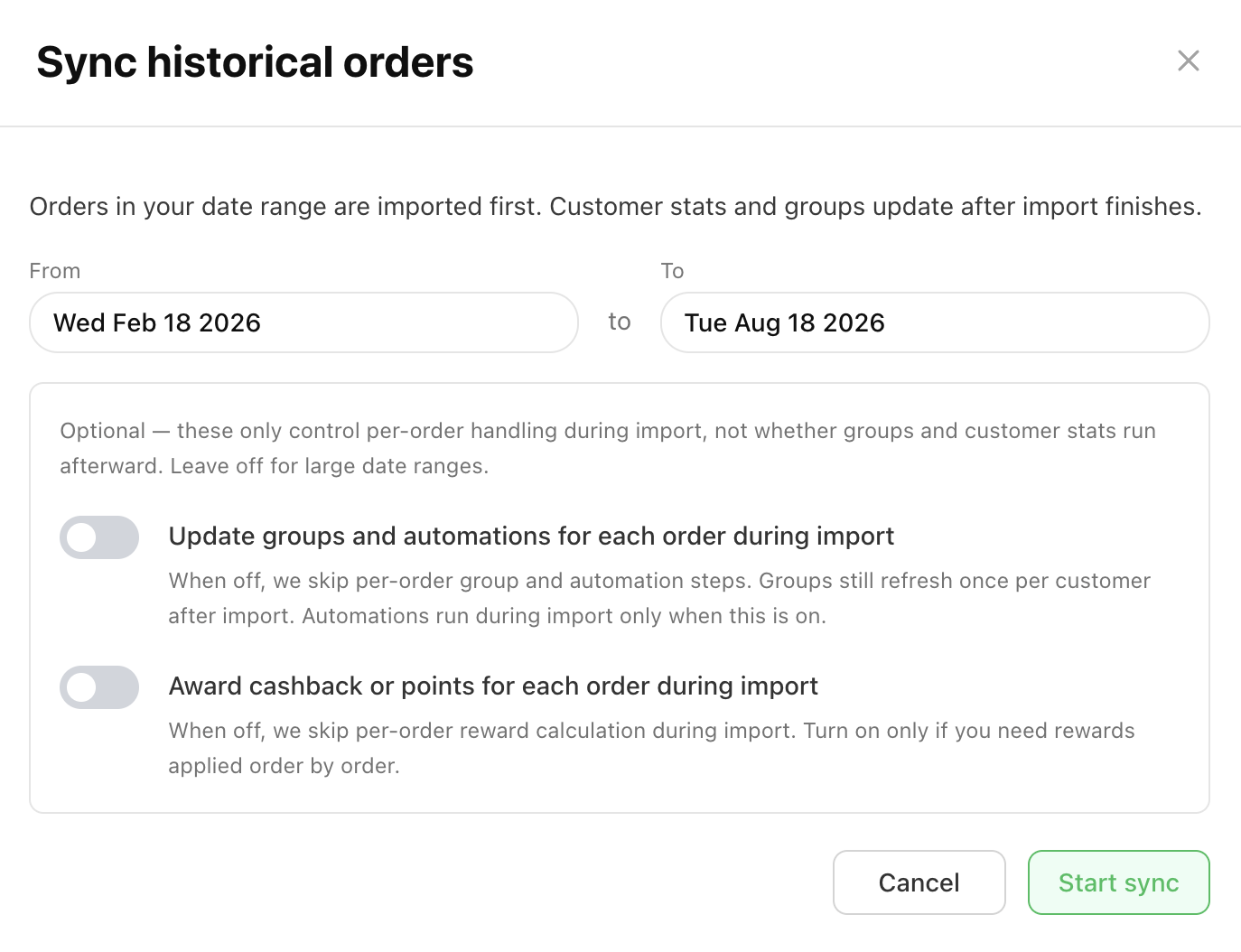
After a successful connection, myne shows Shopify connected and asks whether to pull historical orders.
By default, the range is the last six months. You can change the From and To dates.
Select Start sync to import, or Skip if you only want new paid orders from now on.
Optional toggles (both off by default):
Update groups and automations for each order during import — applies group and automation rules as historical orders are imported.
Award cashback or points for each order during import — awards loyalty for imported orders as well as new ones.
You can review import progress on the History tab (Order import).
What syncs after you connect
Once connected, myne registers updates for:
Customers
Products
Paid orders (transactions)
New paid orders and related customer and product changes arrive through Shopify as they happen. Activity from Shopify can appear with source eCom.
Data that typically flows:
Into myne: orders and customers (and product catalogue updates used in myne)
Out of myne: loyalty and cashback where your account is set up to send them to Shopify
Disconnect or reconnect
To remove the connection, select Disconnect and confirm.
To connect again later, select Reconnect and complete Shopify authorisation again.
If your store still uses a legacy custom-app connection, disconnect first, then connect with Shopify to upgrade.
Important things to know
Ongoing order sync uses paid orders, not unpaid or draft orders.
Brand users manage connection and history on this page. Bulk re-sync of customers, products, or orders from the integration page is for myne staff only—contact support if you need a large historical re-import after you skipped the connect modal.
Shopify as a promotion surface (checkout coupons) is covered in a separate guide and may not be available on every account yet.
Read our next article on how to create promotions for Shopify.