
Add an email domain
Send brand email from your own domain
Published
 Lakshey
An email domain lets myne send from an address on your website domain, such as hello@yourrestaurant.com.au, instead of a shared myne address.
Open Settings → Brand → Email.
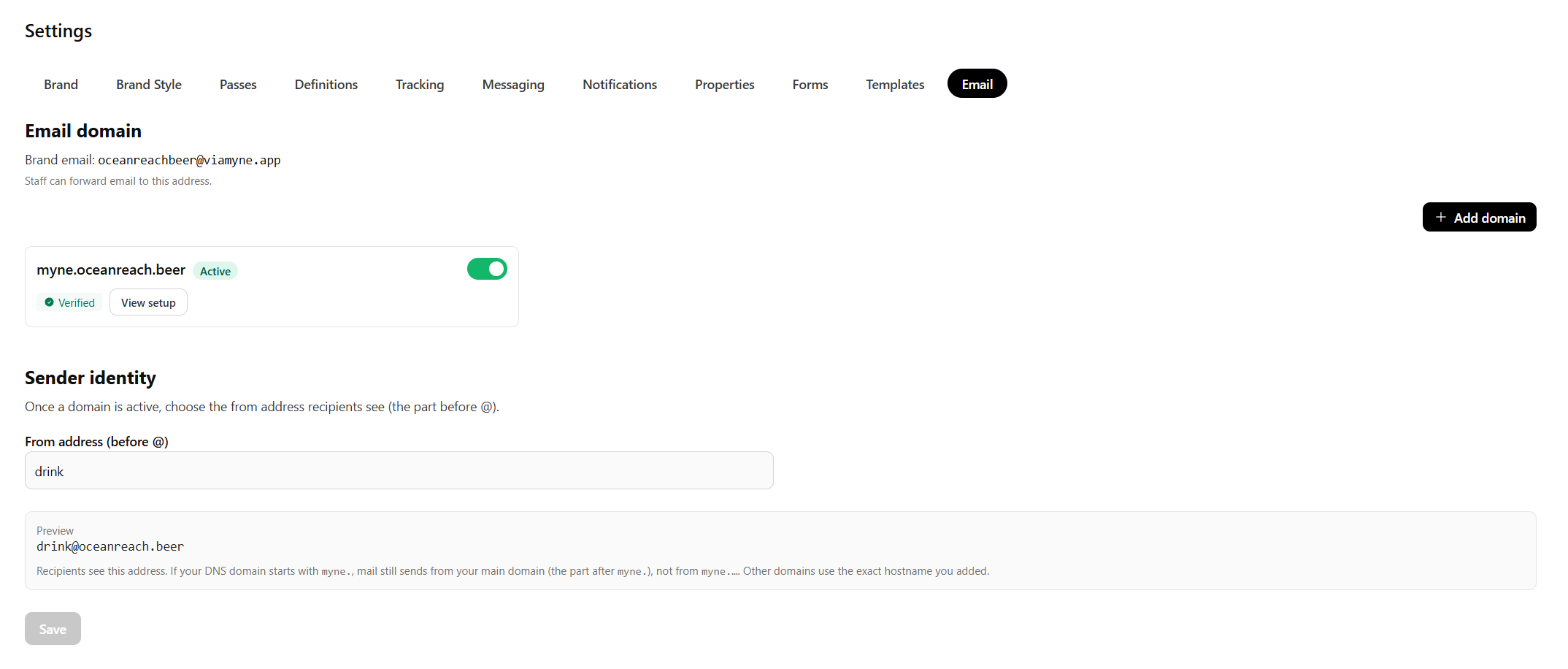
Add and verify the domain
Select Add domain.
Enter Your domain (for example yourrestaurant.com.au). You can optionally set From email now, or leave it and change it later.
Select Check. When the domain is ready, you will see that it is available to set up.
Select Create domain.
Add the DNS records shown at your DNS host. Hosts use different names for Host and Value — match Type, Host, and Value as listed.
Select Verify DNS. Status moves from Pending DNS verification to Verified when the records are in place. If it shows Verification failed, check the records and try again.
Select Activate so myne can send from that domain.
DNS changes can take a little time to show as verified. You can return to the domain and select Verify DNS again.
Sender identity
Once a domain is active, Sender identity sets the part of the address before @. Enter From address (before @) and select Save. Recipients then see that local part plus your verified domain.
Next, build reusable layouts in Create email templates, then send from How to Create a Campaign.