
What are Journeys?
Organise workflows with stages, track progress, and automate record movement
Published
 Lakshey
Journeys help you organise and track businesses or contacts as they move through a repeatable process. Whether you're managing a sales pipeline, onboarding a new customer, tracking supplier orders, or following an internal workflow, Journeys give you a clear visual view of where every record is and what needs to happen next.
Instead of relying on spreadsheets or manual follow-ups, Journeys keep your work organised in one place and make it easy for your team to see progress at a glance.
How Journeys work
Every Journey is made up of a series of stages that represent the steps in your process.
As businesses or contacts move through those stages, you can update their progress, assign owners, capture important information, and report on how your process is performing.
Journeys can be managed manually, or records can move automatically using automations and enrolment rules.
Common ways to use Journeys
Because Journeys are completely customisable, they can be adapted to almost any business process. Common examples include:
Managing a sales pipeline from lead to closed deal.
Onboarding new customers or partners.
Tracking supplier quotes and purchase orders.
Managing wholesale fulfilment.
Running internal approval processes.
Tracking projects or implementation work.
Each Journey can have its own stages, properties, automations, and reporting, allowing you to tailor it to the way your business works.
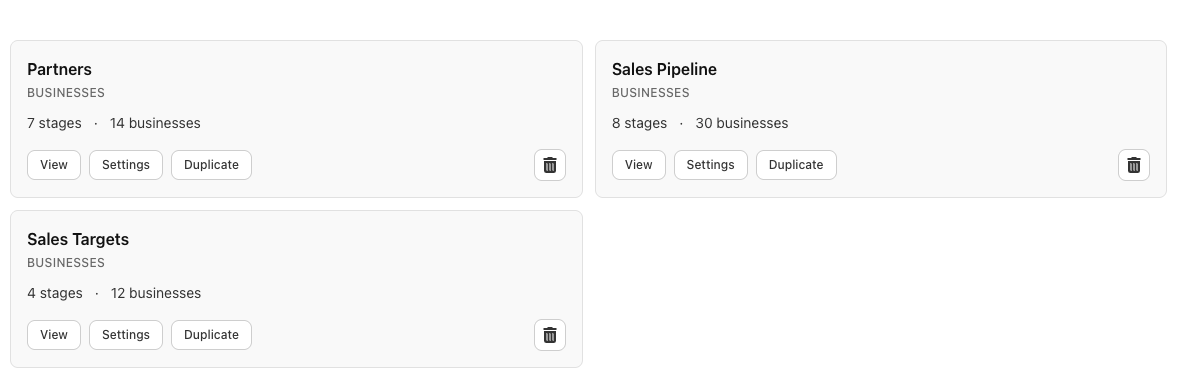
Businesses or Contacts
When you create a Journey, you choose whether it tracks Businesses or Contacts.
Choose the option that best matches the records moving through your workflow. For example, you might manage hospitality venues in a sales pipeline as Businesses, while an employee onboarding process may track individual Contacts.
This setting is selected when the Journey is created and cannot be changed later.
Runs and stages
Every business or contact that enters a Journey creates a run.
A run represents that record progressing through your workflow. As it moves between stages, you can update its progress, add information, assign owners, and track how long it spends at each stage.
For example, in a sales pipeline a business may move through stages such as:
Target → Meeting Booked → Proposal Sent → Closed Won
While an onboarding Journey might use:
New Customer → Training → Go Live → Complete
Each Journey can have as many stages as your process requires.
Run properties
Journeys can store additional information against each run using Run Properties.
These properties are completely flexible and can be customised to suit your workflow.
For example, a sales Journey might include:
Deal value
Target close date
Referral source
An onboarding Journey might instead track:
Main contact
Training date
Go-live date
Run Properties make Journeys much more than a visual board—they become a central place to manage the information needed throughout your process.
Automating your workflow
Journeys work seamlessly with the rest of myne.
You can automatically enrol records into a Journey when they join a group, move them between stages using automations, and report on how efficiently records progress through your workflow.
This helps reduce manual work while keeping every stage of your process up to date.
What's next?
Now that you understand what Journeys are, learn how to create and configure your first Journey, including stages, run properties, and board settings.