
Link contacts to a business
Add people to an account, set a primary contact, and unlink without deleting
Published
 Lakshey
Contacts are the people on a business account. Linking them to the company keeps roles, activity, and follow-up in one place, and lets you choose who receives messages when you send to a business group.
Before you start
You need an existing business, or you can create one while you link. Open Businesses or a contact’s Businesses tab.
Link from the business
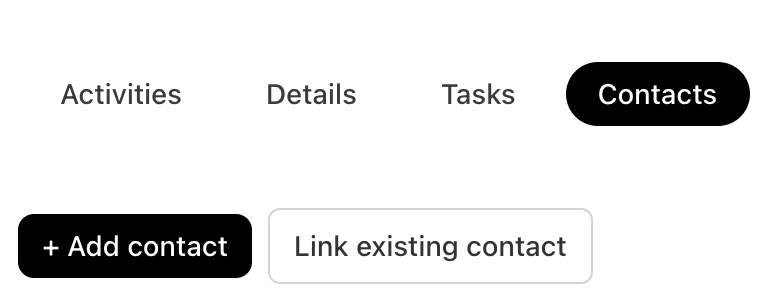
Open the business and select the Contacts tab.
Select + Add contact to create someone new, or Link existing contact to attach a person already in myne. Customer records can be turned into business contacts here as well.
Add a Role if you use one, and mark Primary if this is the main person on the account.
The tab shows each linked person’s email, phone, role, last activity, and whether they are primary. Only one contact can be primary for a business.
The primary contact is used when an automation or campaign needs a person on the account and no other contact is specified. When you send to a business group, Send To can be the primary contact or every linked contact.
Link from the person
Open the contact and select Businesses.
+ Add business creates a new company and links it.
Link existing business attaches a company you already have.
A person can belong to more than one business, each with its own role.
Unlink
On the business Contacts tab, select Unlink for that person. Confirm Unlink contact.
Unlinking removes them from this account only. It does not delete the contact record.