
Connect Square POS to myne
Sync Square POS sales and customers into myne. Optionally turn on Square Loyalty.
Published · Updated
 Lakshey
Connect Square POS & Loyalty to myne. Connecting it brings visits, orders, and customers into myne so you can recognise regulars, build Customer Groups, and run campaigns from the same profiles.
Enhance your connection by connecting Square loyalty to myne, allowing you to do points based promotions and offers directly from Square. You can still run limited loyalty and promotions via Square even if you have not purchased Square Loyalty.
Connect Square
Go to Settings → Integrations → Square.
Under Connection, select Connect.
Sign in to Square and approve access when prompted.
When the connection succeeds, status shows as Active. The page shows your Square business name and merchant ID.
Initial sync
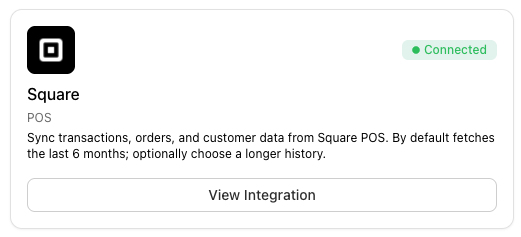
After you connect, myne asks whether to pull historical sales. By default the range is the last six months. You can change the From and To dates.
Select Start initial sync to import, or Skip if you only want new activity from now on. You can also start a sync later from Initial sync on the Square page.
Optional — both off by default:
Update groups and automations for each order during import — applies Customer Group and automation rules as historical orders come in.
Award cashback or points for each order during import — awards loyalty for imported orders as well as new ones.
Leave these off unless you specifically want historical orders to trigger groups, automations, or rewards.
What data is synced
Once connected, myne syncs:
Customers
Orders and transactions
Related catalogue data used in myne
New Square activity then keeps updating. The first import can take a few minutes, or longer if you pull a lot of history.
Square Loyalty


POS sync continues whether loyalty is on or off. To use Square as this brand’s points provider, turn on Enable Square Loyalty.
If you see Reconnect required for loyalty permissions, select Reconnect Square and approve access again. That upgrades loyalty access without stopping POS sync.
Disconnect
To remove the connection, select Disconnect and confirm. You can connect again later from the same page.