
Connect Humanitix
Bring ticket sales and event attendance into your customer activity
Published
 Lakshey
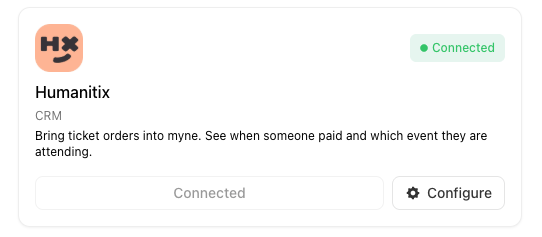
Connect Humanitix to myne to bring your event, ticketing and customer purchase data into one place.
myne automatically imports completed ticket orders from Humanitix, allowing you to see which customers purchased tickets, how much they spent and which events they're attending. This activity appears alongside purchases and visits from your other connected systems, helping you better understand your customers and engage with them through targeted groups and campaigns.
Before you start
Access to your Humanitix account
A Humanitix public API key (from Humanitix: Account → Advanced → Public API key)
Permission to manage integrations in myne for your brand
Connect Humanitix
In myne, go to Settings → Integrations.
Find and select Humanitix.
Enter your Public API key.
Select Connect Humanitix.
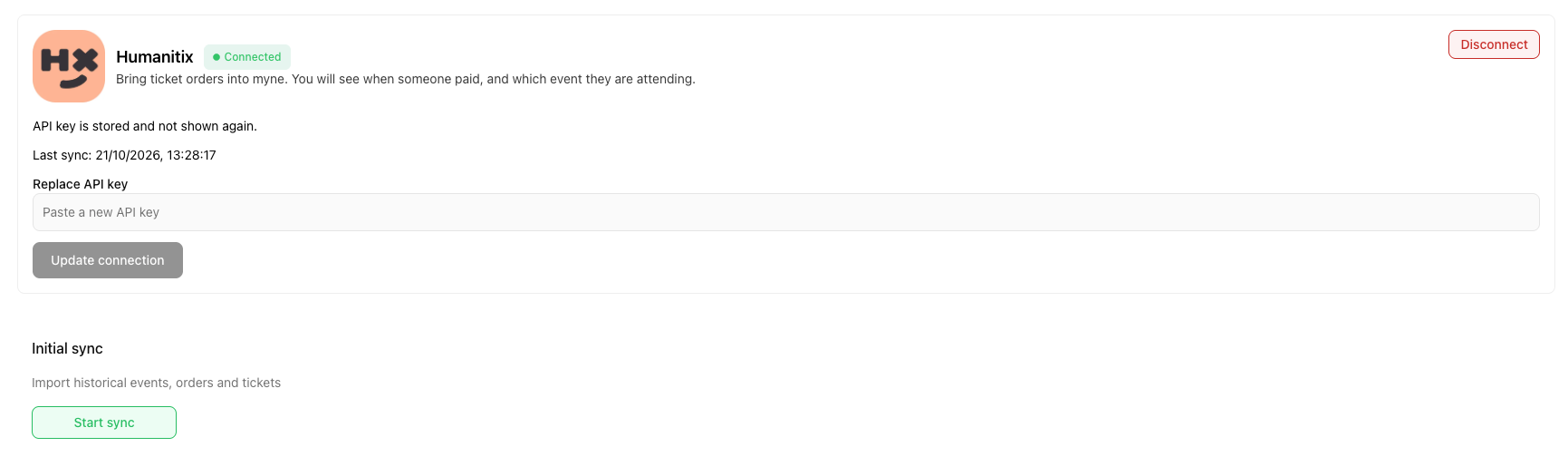
Once connected, myne will begin importing your historical events, ticket orders and customer activity. You can monitor the sync progress under the History tab in your Humanitix integration.
How Humanitix data appears in myne
When a customer purchases tickets through Humanitix, myne matches them to an existing customer profile or creates a new one.
Their activity is recorded in two ways:
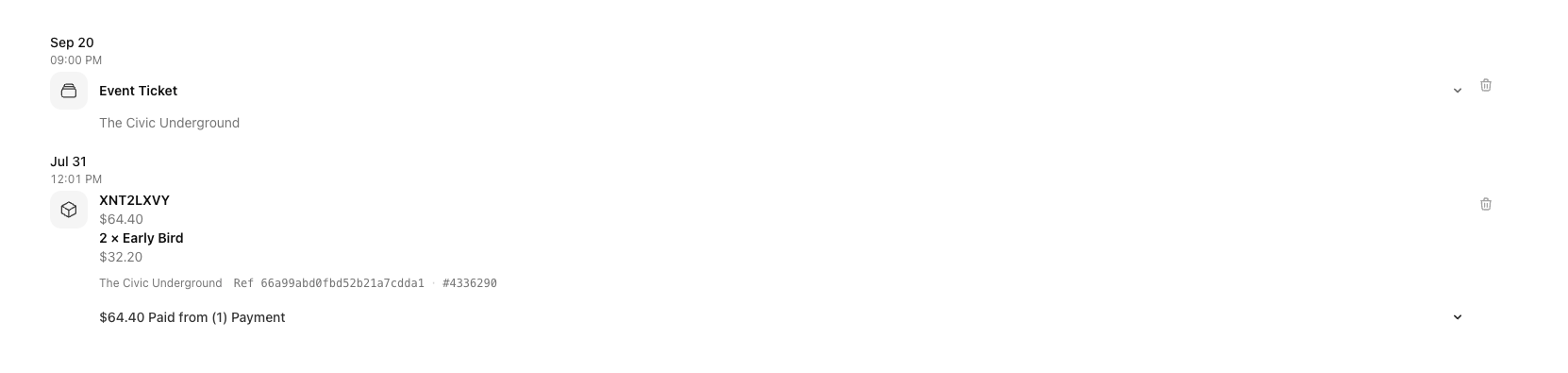
Ticket purchase: Records the amount spent, the tickets purchased and the date of payment. Ticket types and quantities are included in the purchase details.
Event visit: Creates an Event Ticket activity on the date of the event, showing which event the customer is attending. This also counts towards their total visits in myne, without adding the purchase amount again.
For example, if a customer purchases two Early Bird tickets for an upcoming event, myne records the purchase when they pay and an event visit on the scheduled event date. This allows you to see their ticket purchases and event history alongside their other activity, giving you a more complete picture of their relationship with your business.
You can also use this information to create customer groups and run targeted campaigns, such as reconnecting with previous ticket buyers or promoting upcoming events to customers who've attended similar events.
New orders and refunds are automatically synced approximately every 30 minutes.
Manage your Humanitix integration
Re-import historical data
If you need to import previous events, orders and tickets again:
Go to Settings → Integrations → Humanitix.
Under Initial sync, select Start sync.
Open the History tab to monitor progress.
Update your API key
If your Humanitix API key changes, enter the new key under Replace API key and select Update connection.
Updating your API key doesn't re-import historical data. Use Start sync if you need to refresh previous records.
Disconnect Humanitix
To stop syncing Humanitix data, open the integration and select Disconnect.
Important things to know
Refunds
When a ticket order is fully refunded, myne updates the purchase amount to $0 and removes the ticket from guest attendance. The activity remains visible on the customer profile. For partial refunds, myne updates the purchase amount while keeping the event ticket.
Completed orders
Only completed ticket orders are imported. Free ticket orders are included with a purchase value of $0.
Multiple locations
For brands with a single location, ticket sales can be attributed to that location. For brands with multiple locations, purchases remain visible on customer profiles and in brand-level reporting, but may not appear when filtering reports by an individual location.
Marketing consent
Marketing preferences collected through Humanitix are not automatically applied as marketing consent in myne.
One-way integration
Humanitix sends data to myne, but myne doesn't send changes back to Humanitix. Ticket check-ins, transfers and other ticket management actions continue to be handled in Humanitix.