Connect Event Temple
Sync catering contacts and bookings into myne, map groups that send people back, and create bookings from Flow.
Published
 Lakshey
Connect Event Temple to myne to bring your event bookings and customer information into one place.
myne automatically imports contacts and bookings from Event Temple, allowing you to see customer enquiries and upcoming events alongside visits and purchases from your other connected systems.
You can also send selected customer groups to Event Temple and create new event bookings directly from myne using Flow, helping your team manage enquiries without switching between platforms.
Before you start
You'll need:
Access to your Event Temple account.
An API key and Organisation ID, found under Settings → Overview in Event Temple.
Permission to manage integrations in myne.
Connect Event Temple
In myne, go to Settings → Integrations.
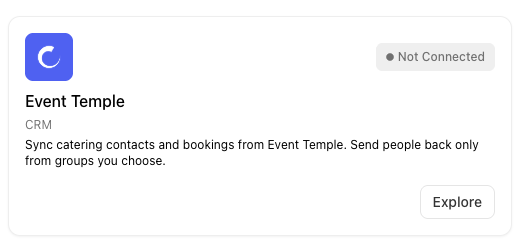
Find and select Event Temple.
Enter your API key and Organisation ID.
Select Connect Event Temple.
Once connected, myne will begin importing your Event Temple contacts and bookings. You can monitor the sync progress under the History tab.
How Event Temple data appears in myne
When Event Temple is connected, myne automatically imports your contacts and matches them to existing customer profiles where possible.
Bookings appear as Booking activities on the customer's timeline, giving you visibility into their event enquiries and bookings alongside their other interactions with your business.
For example, a customer who previously visited your venue for dinner might later enquire about hosting a private event. With Event Temple connected, you can see their booking activity alongside their previous visits and spending history.
Upcoming bookings marked Tentative or Definite can also help identify engaged customers, even if they haven't made a recent purchase. Bookings marked Lead or Lost don't contribute to this engagement.
New and updated contacts and bookings sync automatically approximately every 30 minutes.
Send customer groups to Event Temple
You can send selected customer groups from myne to Event Temple, keeping contacts available in both platforms.
For example, you might have a group of customers who regularly book private events or have expressed interest in hosting a function. Syncing this group to Event Temple makes these contacts available to your events team for follow-up.
To set up group syncing:
Go to Settings → Integrations → Event Temple.
Under Outbound groups, choose a Customer group.
Select Add route.
Select Save routes.
To send existing group members immediately, select Send current members.
Once configured, customers added to the selected group are automatically created or linked in Event Temple. Changes to their myne customer profiles are also reflected in Event Temple.
Removing a customer from the group won't delete their Event Temple contact.
Note: Customers in myne aren't automatically sent to Event Temple unless they belong to a group you've configured for outbound syncing.
Create Event Temple bookings using Flow
You can use Flow to automatically create Event Temple bookings when customers submit an enquiry or complete an action in myne.
For example, a customer could submit a private function enquiry through a myne form. Flow can then create a booking in Event Temple, assign it to your events team and notify staff for follow-up.
To configure this:
Open Flow and create or edit a flow.
Add the Create Event Temple booking action.
Enter the booking name, status and start date.
Optionally add an end date, booking times, deal value, expected guest numbers or additional Event Temple booking fields.
Under Assign to, choose an Event Temple user, leave the booking unassigned or use Round robin to distribute bookings across selected team members.
Save and activate your flow.
You can also type @ in supported text fields to insert information collected from the customer's enquiry or earlier steps in the flow.
When triggered, myne creates or links the customer in Event Temple before creating their booking. New customers must have an email address to be linked.
Bookings default to Lead status, and if no end date is provided, Event Temple uses the start date.
Manage your Event Temple integration
Update your connection
If your Event Temple credentials change, go to Settings → Integrations → Event Temple, enter your new API key or Organisation ID and select Update connection.
Disconnect Event Temple
To stop syncing Event Temple data, open the integration and select Disconnect.
Disconnecting also removes the Create Event Temple booking action from the available Flow actions.
Important things to know
Customer matching
myne matches Event Temple contacts to existing customer profiles using their Event Temple ID, email address or phone number where available, helping prevent duplicate customer records.
Event Temple remains your booking system
Bookings created through Flow are managed in Event Temple. Booking details such as event spaces, packages and menus continue to be managed there.
Catering and event bookings
Event Temple is designed for catering, functions and event bookings. It is separate from dining reservation platforms such as OpenTable or SevenRooms.
One central connection
Your Event Temple credentials are managed under Settings → Integrations. You don't need to configure separate API credentials within Flow.