Automate movement through a Journey
Add records to a board and move them forward automatically
Published
 Lakshey
Journeys can automatically add businesses or contacts to a board and move them forward as they meet different conditions. This helps keep sales, onboarding, account management, and other processes moving without someone needing to manually add or drag every record.
Use Auto-enrolment to control when a record should enter the Journey, and Auto-advance to control when it should move to a later stage.
For help setting up stages and properties, see Create and configure a Journey.
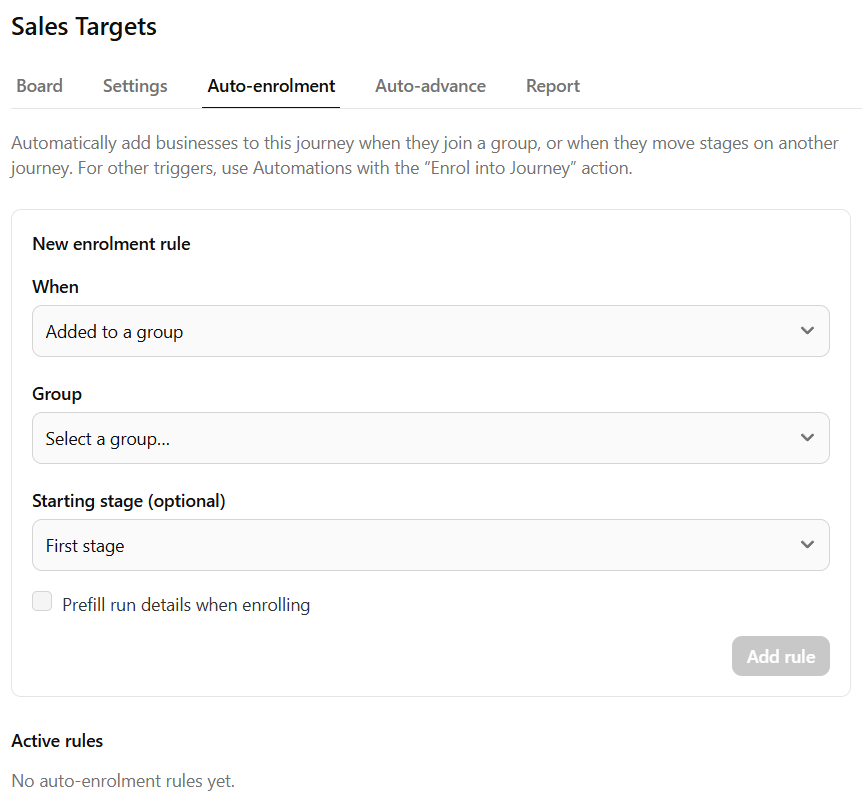
Auto-enrolment
Automatically add a business or contact to this journey when they join a group, or when they move stages on another journey.
Open the journey → Auto-enrolment.
Under New enrolment rule, set When to Added to a group or Moves stage on another journey.
Choose the Group, or the Source journey and stages.
Select Add rule.
Active rules can be paused or removed. Removing a rule does not take records already on the board off it.
For other triggers, build an automation with the Enrol into Journey action.
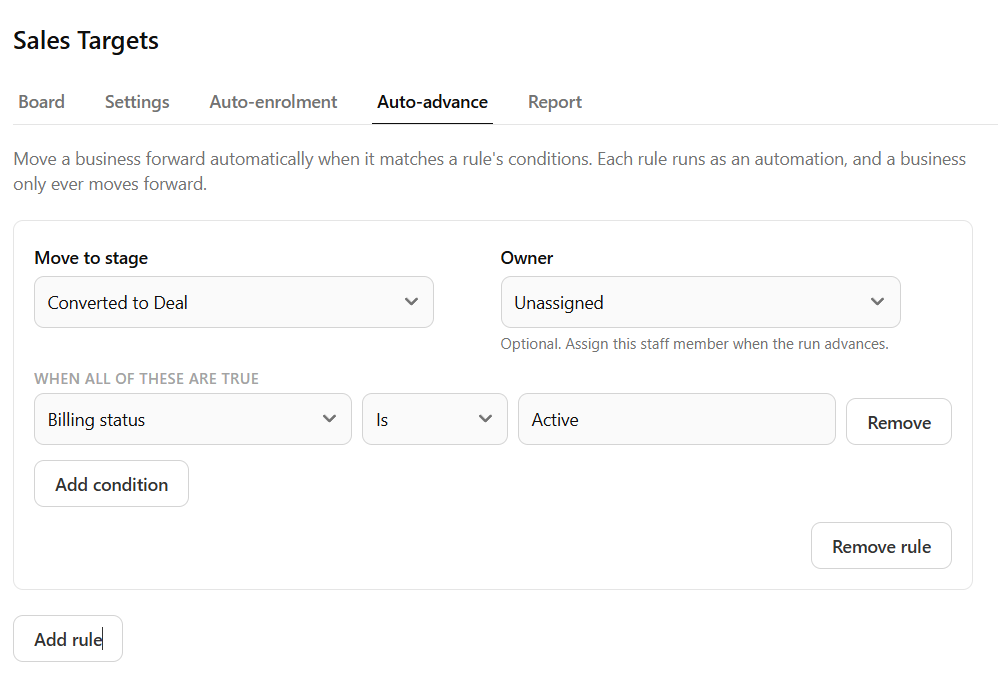
Auto-advance
Move a record forward when it matches a rule. A record only ever moves forward.
Open the journey → Auto-advance.
Select Move to stage.
Optionally set Owner so that staff member is assigned when the run advances.
Under When all of these are true, add the conditions.
Select Save changes.